Simulate fits your phone
On a phone, Simulate now gives most of the screen to your part, with the scene, results and settings in one panel along the bottom and a one-line run bar. You choose only Fast or Accurate; the GPU or CPU is picked for you, and the engine status is short and plain.
More of the part on a phone
The Bracket demo in Simulate on an iPhone-sized screen (393 by 852), before and after.
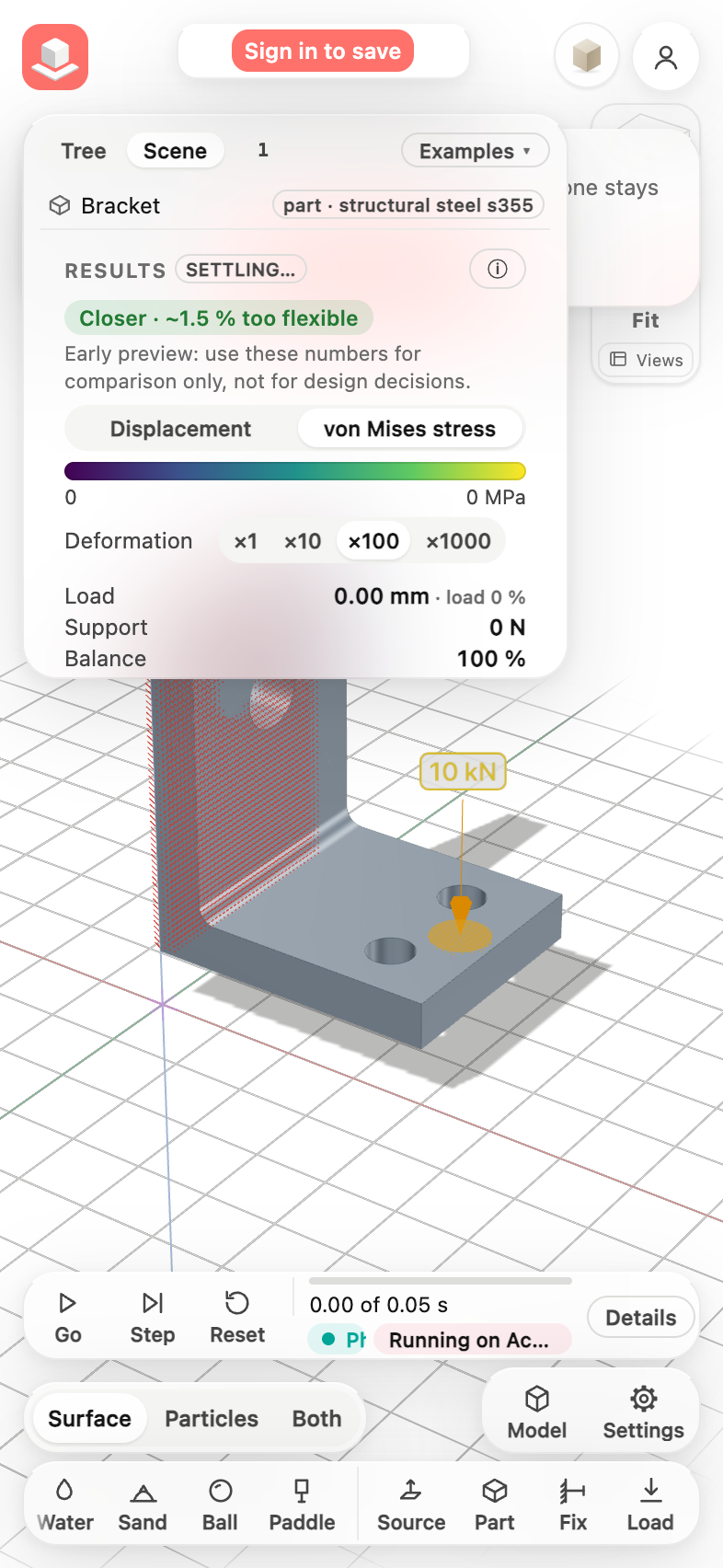
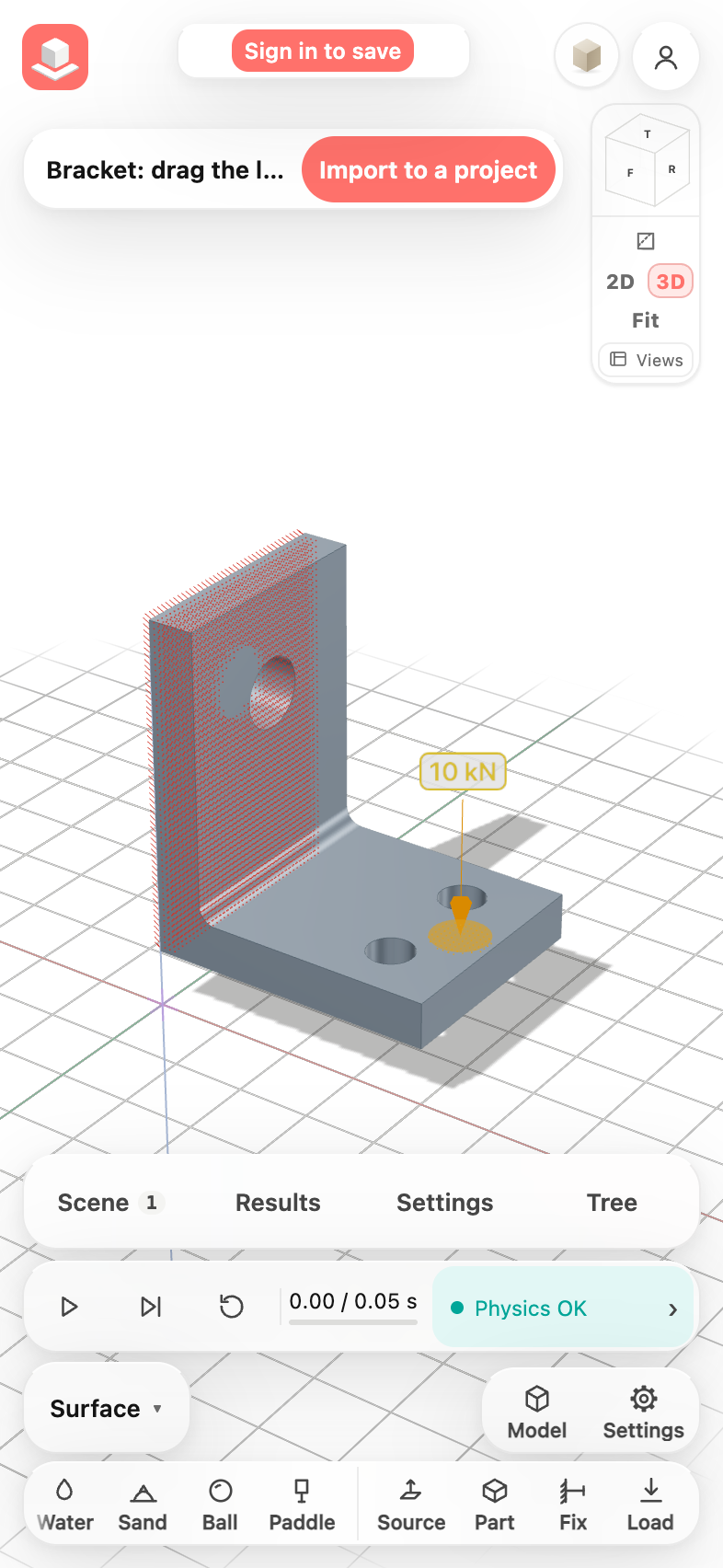 BeforeAfter
Simulate on a phone
Open a Simulation demo or press Simulate on a phone. The part fills the screen. Along the bottom are the panel tabs (Scene, Results for a part with supports and loads, Settings, Tree), the run bar, the View menu with Model and Settings, and the tools to add water, sand, a ball, a paddle, a source, a part, Fix and Load.
- Tap Scene to see the items and change the selected one; tap Scene again to fold the panel.
- Tap Settings for the size, Fast or Accurate, the duration and drops.
- Tap Go. The chip on the run bar shows the status; tap it for Details.
Fast, Accurate, and where they run
Fast always runs on the GPU. Accurate runs on the GPU when your device has one that works and it is the faster for the scene; otherwise on the CPU. Simulate measures both when it opens. A scene that adds material while it runs (a source or drops) runs Accurate on the CPU, which is faster for it. The ⓘ next to Engine explains this; Details › Run on lets you choose GPU or CPU yourself.
Everything in this release
Improved
- On a phone, held upright or on its side, the Scene card, the results, the size and engine settings and the Feature tree are one panel along the bottom with the tabs Scene, Results, Settings and Tree. It starts folded to its tabs, so the part view takes about 60 to 70 % of the screen; tap a tab to open it and tap it again (or the arrow) to fold it.
- On a phone, the run bar is one line: Go, Step, Reset, the time, and one status chip. Tap the chip for Details.
- On a phone, Surface, Particles and Both and the particle colours (Material, Speed, Crowding, In a solid and result fields) are one View menu instead of two rows of buttons.
- On a phone held on its side, Simulate now uses the compact layout too, with the panel's tabs beside the run bar and an open tab as a card above them.
- On a phone, a demo's banner is one line with its name and Import to a project, so it no longer covers the view cube.
- When Fast cannot start on your device's GPU, the scene runs on Accurate and the run bar says Accurate · Fast unavailable. Details explains it in one sentence; the technical line for a bug report is under Technical details, with Copy. Long engine error text no longer appears anywhere, and every engine message is at most two lines.
- There is one engine choice, Fast or Accurate. GPU or CPU is automatic: the GPU first, and the CPU only when the GPU is unavailable, cannot run the scene, or is measurably faster for it. Details shows what actually ran, for example Accurate · GPU or Accurate · CPU (GPU unavailable).
- Details › Run on (Auto, GPU or CPU) replaces Accurate runs on, for comparisons. Auto is the default; the Simulation demos no longer start Accurate on the CPU.
- If Accurate's GPU engine cannot start on your device, the scene now runs on the CPU and says so, instead of stopping with an error.
- Opening one Simulation demo after another no longer measures the engines again each time, and a scene never waits for that measurement: it builds at once, so it can no longer stay at Building… with the estimate at calibrating…. If a measurement or Fast's start takes far too long, the estimate says unavailable and the scene runs on Accurate.
Other improvements
- On a phone (upright or on its side), Simulate's Scene card, results, settings and Feature tree are one panel along the bottom with the tabs Scene, Results, Settings and Tree, folded to its tabs at first, so the part takes most of the screen.
- On a phone, the run bar is one line (Go, Step, Reset, the time and one status chip that opens Details), and Surface, Particles, Both and the particle colours are one View menu.
- When Fast cannot start on a device's GPU, the run bar's chip says Accurate · Fast unavailable; Details and the Engine switch give the one sentence, and Technical details has a Copy button. Engine messages are at most two lines everywhere.
- One engine choice, Fast or Accurate: GPU or CPU is automatic (the GPU first, the CPU when the GPU is unavailable, cannot run the scene or is measured slower for it). Details › Run on (Auto, GPU, CPU) replaces Accurate runs on, and the label names what ran, for example Accurate · CPU (GPU unavailable).
- If Accurate's GPU engine cannot start, the scene runs on the CPU and says so instead of stopping with an error.
- Opening several Simulation demos in a row no longer re-measures the engines each time, and a scene never waits for that measurement: it can no longer stay at Building… with the estimate at calibrating…. A measurement or a Fast start that takes far too long now ends with the estimate unavailable and the scene on Accurate.
