Simulation workspace and particle sandbox
Build a particle scene from walls, containers and real materials, press Go and watch it run, then feed in water, drag a paddle and play the Particle game.
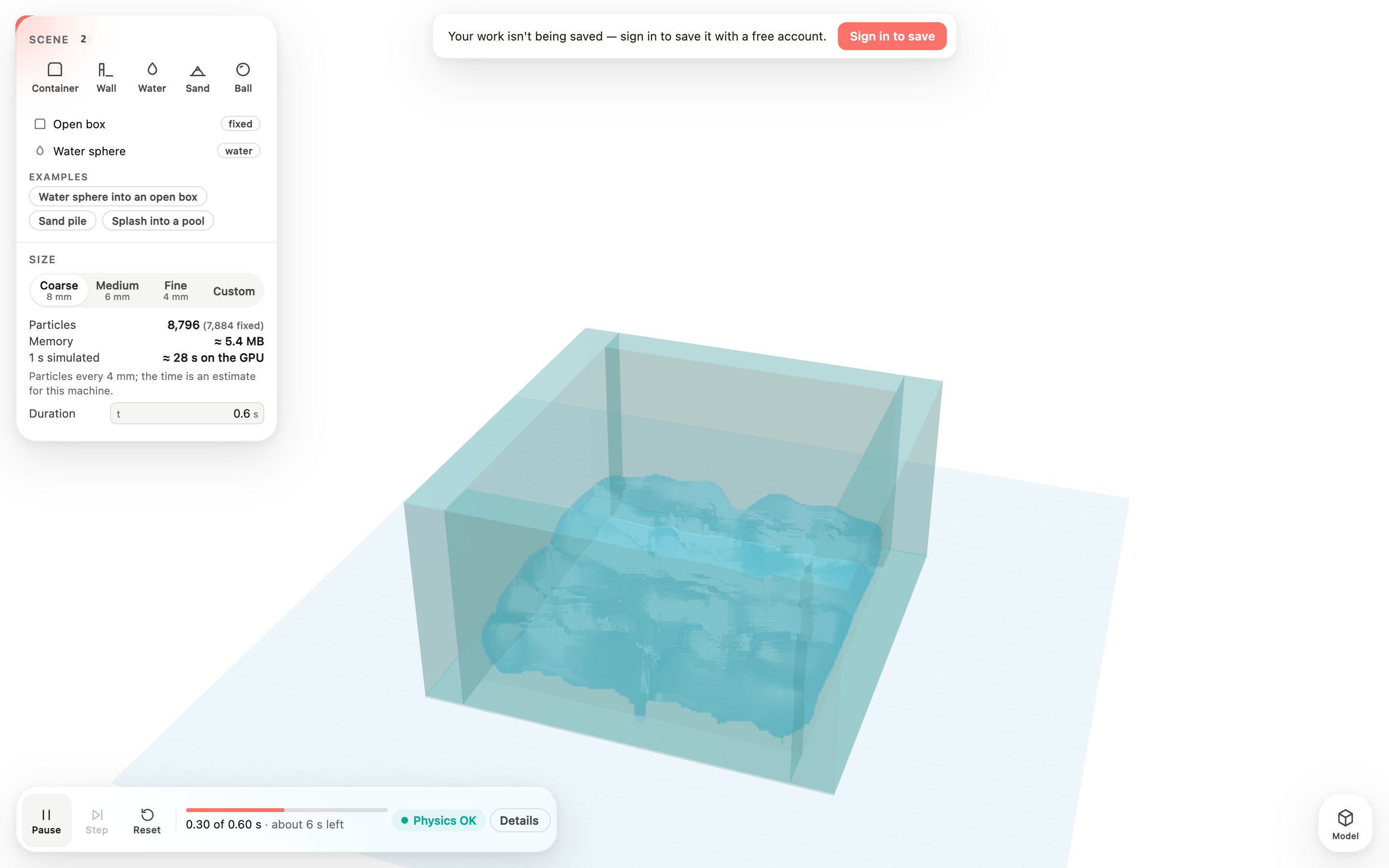
Mid-run: the water settling in the box
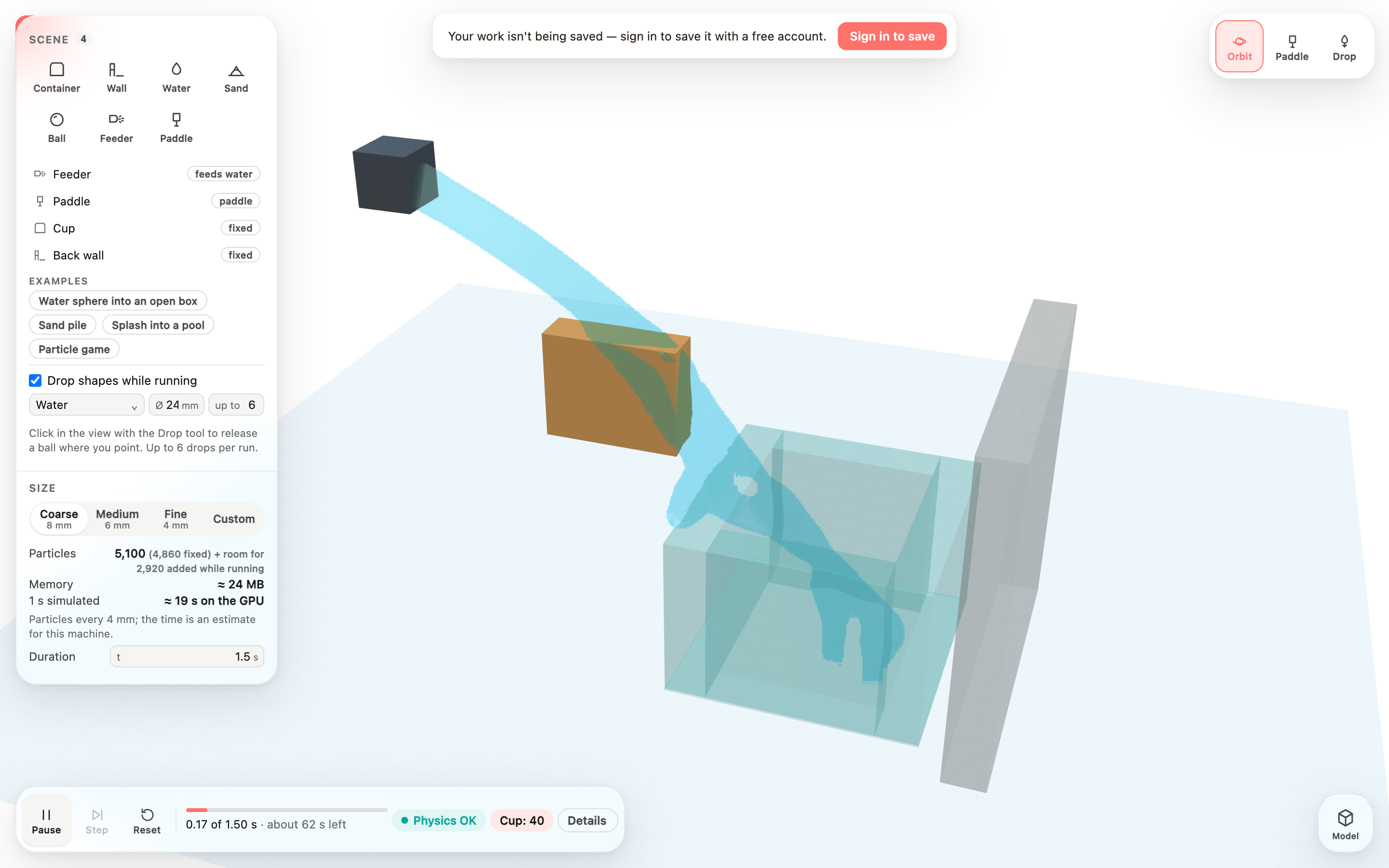
The jet fills the cup
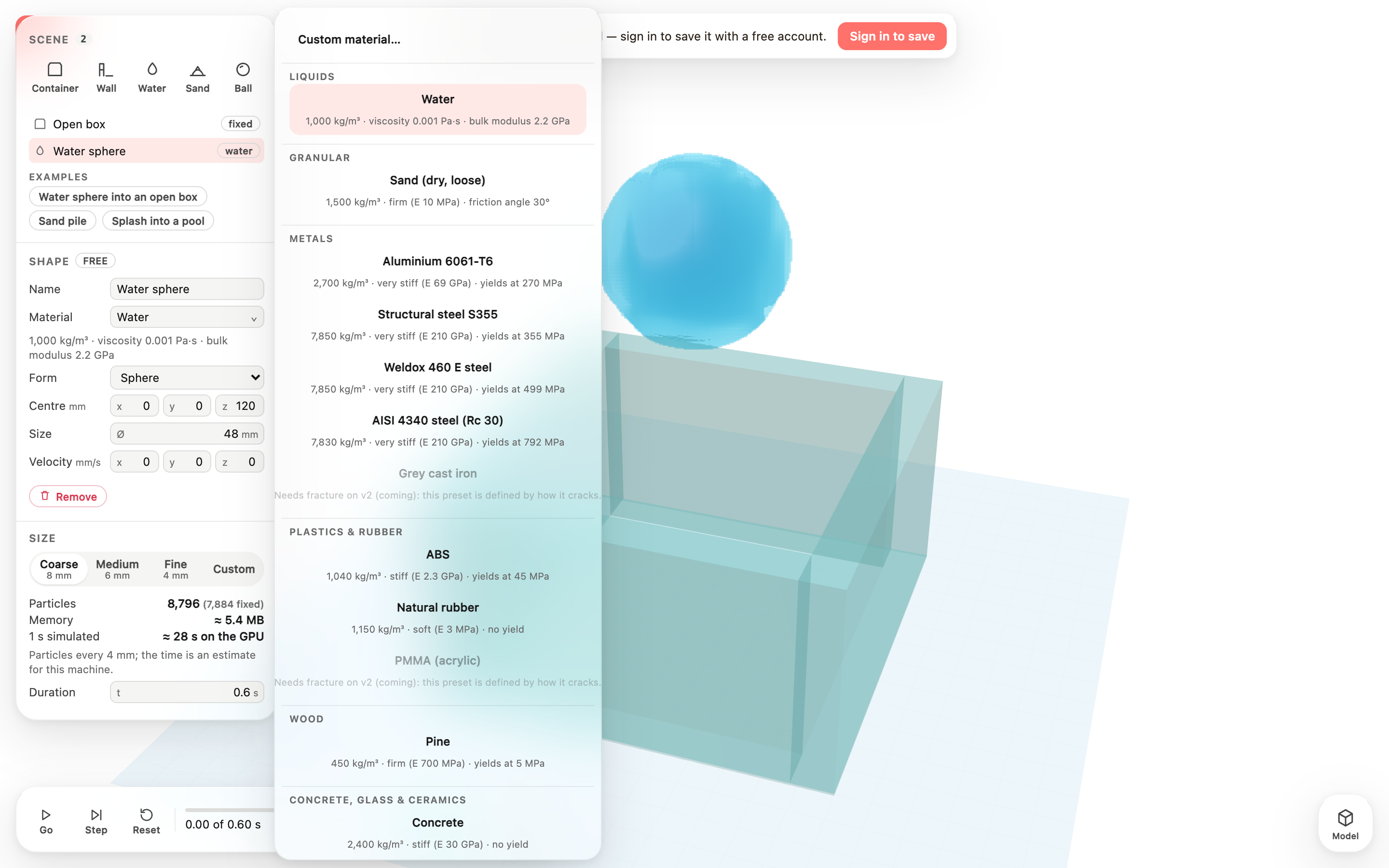
The material picker
See how fast a study runs
Real materials are stiff, and the new engine does not soften them to run faster. On a desktop CPU a study can run thousands of times slower than real time.
The study panel shows the engine's measured speed and how much of the study it has computed, so you can choose a coarser grid or a shorter study before waiting.
- Open the Particle world and choose a study in Study setup.
- Press Play. The panel shows Engine at, with the simulated time and percentage, then the speed as a multiple of real time and the time left at the speed so far.
- Grid spacing shows the same measured speed once the study has started.
Limits
Tank drop stops at its first step and Bracket catch when the block reaches the bracket: the new engine cannot yet complete those contacts, so each study stops and shows the engine's message with a Retry button.
With several bodies, such as in Dam break, the water's top layer still settles slowly, about 2.5 mm/s at 6.4 mm spacing: the engine's fix for the water surface does not yet work together with contact between bodies.
Studies with joints, supports, applied loads or fracture are not available until the new engine has those features. GPU compute is for single-body studies only for now.
Feed particles into a running scene
A feeder adds material during the run through the engine's own insertion path: every particle it releases is a real particle of the chosen material from that moment on, spaced like the rest of the scene. Room for what it can release in the run's length is set aside when the scene is built; when it is used up the feeder stops and the notices say so. Nothing grows silently while running.
Feeders and drops take liquids and granular materials (water, sand, or a custom liquid or granular material you defined): a stream renders from its particles, and a solid stream would have no surface to draw.
- Press Simulate, then Particle game under Examples, or add a Feeder from the Add row and select it.
- Set its Nozzle position, Direction, Speed and Nozzle Ø. The note below shows the flow (mL/s and particles per second) and the slots reserved for this run.
- Press Go. The jet appears at the nozzle and the cup's counter in the run bar rises as water lands in it.
- Press Details: Added while running shows how many particles entered and their energy, counted as input in the energy check.
Interact while it runs
The Paddle is a kinematic body: you prescribe where it goes, the engine moves it as a boundary made of particles and the material responds through the same physics as everything else. There is no force applied by hand. Its work on the material is shown in Details and counted as input.
A scene with a paddle runs on the CPU engine for now (Details, Engine says why); the GPU engine runs feeders and drops.
- While the scene runs, press Paddle in the tool group at the top right of the view, then drag in the view: the paddle follows the pointer in its own horizontal plane.
- Press Drop, then click where you want a ball released; it falls from above the scene. Up to the number you set under Drop shapes while running (6 in the Particle game).
- Press Orbit to turn and zoom the view again.
Limits
The paddle runs on the CPU engine, so a game scene is slower than a GPU scene of the same size; keep the Coarse size and short durations for play. The paddle moves horizontally (its height is set in its properties). A feeder's stream is released in discs one particle pitch apart; at very high speeds several discs enter per step, laid out along the jet.
At the Coarse size a fast jet can push a few particles into or through a thin wall where it hits: in the Particle game about 4 % of the feeder's particles sat inside the cup's walls after 0.15 s. Thicker walls or a finer size hold better; separate wall contact for particles is an engine milestone.
The scene has room to splash around it; water flung past that room is removed at the edge and counted under Left the scene in Details (CPU engine). On the GPU engine such a particle stops the run with a plain message.
Feeders, drops and paddles are kept with the scene in this browser per project, like the rest of the sandbox.
Build a scene and watch the physics
The Simulation workspace runs the v2 reference particle engine with real material properties: no damping knobs, no tuned numbers. Every item is a body of particles, fixed walls included, on one shared lattice, so what you see is what the engine computes.
Speed is shown as the real-time factor (1.0 means real time) and as the time one second of motion takes to compute. A small scene on the GPU runs at a few percent of real time; finer sizes take longer.
- Open a project and press Simulate in the bottom-right dock.
- Press Water sphere into an open box under Examples, or add items with Container, Wall, Water, Sand and Ball and select one to set its material, centre, size and velocity.
- Choose Coarse, Medium, Fine or Custom under Size; the particle count, memory and time estimate update at once.
- Press Go. The progress bar shows the simulated time and what is left; the chip reads Physics OK while the energy check holds. Pause holds the run, Step advances one engine update, Reset returns to t = 0.
- Press Details for speed, steps, particles, the engine (GPU or CPU) and the energy check. Press Model to return to the drawing; the scene is kept.
Materials, including your own
The Material picker lists the engine's real presets in groups (liquids, granular, metals, plastics and rubber, wood, concrete, glass and ceramics) with their density, stiffness and yield in plain words. Presets defined by how they crack are greyed out until fracture lands on the engine.
Custom material… starts from a preset. Edit only physical properties in real units: behaviour (Liquid, Granular, Elastic, Elastic-plastic), density, stiffness or bulk modulus, Poisson's ratio, and viscosity, friction angle, yield stress or surface friction as the behaviour needs. Impossible values are refused with a plain message; the editor also says what the stiffness means for run time.
- Select an item, press its Material and pick a preset, or press Custom material….
- Edit the properties, then press Save material. It appears under My materials and is saved with the scene.
Limits
Walls and containers are axis-aligned slabs at least one grid cell thick; the workspace says when one is too thin for the chosen size. Bodies share one velocity field, so a solid touching water sticks to it where they meet; separate-body contact arrives with a later engine milestone. Rigid and fracturing materials are not available yet.
At the Coarse size the motion settles faster than real water would: numerical dissipation at 8 mm and the no-slip fixed walls take most of the splash's energy within a few tenths of a second (the energy check reports what was dissipated). Finer sizes keep more of the splash and cost more time.
The scene is stored in this browser per project, not in the project file, and the GPU engine needs a browser with WebGPU; the CPU engine is the fallback in Details. The time estimate comes from a quick calibration on this machine with water; stiffer materials take longer.
Everything in this release
Added
- Feeder: a nozzle with a position, direction, speed and width (10 mm by default, a trickle) that adds water or sand to the scene while it runs. The nozzle is drawn in the view; its properties show the flow in mL/s and particles per second, and how much room the run sets aside for what it adds.
- Paddle: a wooden body you drag through the running scene with the Paddle tool in the view (highlighted while you hold it). It moves as a body of particles and pushes what it meets; the material next to it moves with it.
- Drop shapes while running: tick it under the scene list, choose the material, diameter and how many, then click in the view with the Drop tool to release a ball where you point.
- Containers can count the particles inside them (Count the particles inside): the run bar shows the count as it changes.
- The energy check counts what entered and the paddle's work as input, never as a gain: Details shows Added while running and Paddle work with their energy.
- A fourth example, Particle game: a water jet, a paddle to steer it, a cup to fill and its counter.
- Simulate in the dock opens the Simulation workspace: a scene list on the left, the 3D view, and a slim run bar with Go, Pause, Step and Reset.
- Add fixed walls and open-top containers, and shapes (box, sphere, cylinder) of water, sand, rubber, steel, aluminium, concrete, glass, pine or ABS with a position, size and starting velocity; every shape snaps to the particle lattice.
- A grouped material picker shows each real preset's key properties in plain words and greys out what the engine cannot run yet with the reason; Custom material… lets you define your own from density, stiffness, Poisson's ratio, viscosity, friction angle or yield stress in real units, refusing impossible values, and saves it with the scene.
- Size: Coarse, Medium, Fine or a custom grid spacing, with the particle count, memory and a time estimate for this machine shown before Go; re-run the same scene at another size with one click.
- The run bar shows the simulated time, what is left, a Physics OK chip (the energy check: nothing in the scene adds energy) and Details: speed as the real-time factor, steps, particles, the engine (GPU or CPU) and any step retries. A stop is said in plain words and the run stays on screen.
- Three one-click examples: Water sphere into an open box, Sand pile, Splash into a pool. The scene is kept with the project in this browser.
Improved
- Particle world studies Coupling chain, Bracket drop, Mixed stack, Head-on, Sand pit and Dam break run on the new engine with real materials: natural rubber, structural steel, real water starting at rest under its own weight, and dry sand. Tank drop and Bracket catch use the new engine too, but currently stop with the engine's message (see Limits). Bodies touching each other and the floor take their friction from their own materials.
- There is no Bounce or study-wide Friction input any more. How much a body rebounds now comes from its material's elasticity, and friction comes from each material's surface property, shown under Friction for every pair.
- Head-on lets you choose natural-rubber or structural-steel cubes. Bracket catch's fixed bracket is now a steel body made of particles, so the block meets the bracket's actual material.
- Studies the new engine cannot run yet (Concrete floor, Workshop drop, Bending bar, Hinged pendulum, Motor arm, Slider, Shatter and Snap) show Not available yet with the missing feature, such as joints, supports and applied loads, or fracture. They no longer run on an older engine.
- Simulations at real stiffness can be much slower than real time. The study panel now shows the simulated time the engine has reached, the measured speed as a multiple of real time, the progress through the study and the time left at the speed so far, so a slow run reads as slow rather than stuck. Impacts and contact can make a study much slower than its first moments.
- If the engine cannot complete a step, the study stops with the engine's own message and a Retry button. Nothing is approximated to keep it going.
- GPU compute uses the new engine for single-body studies such as Bracket drop. Studies with several touching bodies compute on the CPU for now, and the Compute on menu says why.
- The Particle test drops the selected part in its real Study material (aluminium, steel or ABS) onto a concrete floor, on the CPU or the GPU. The separate Drop test, Contact test and Particle collision pages are retired; their scenes are in the Particle world.
- The Performance page profiles the new engine: real-time factor, steps per second, solver iterations per step and stage times, for a rubber or steel block on a floor or two rubber blocks colliding.
- Tank drop and Dam break offer only grid spacings that place their walls on the simulation grid: 8 or 4 mm for Tank drop, and 8, 6.4 or 4 mm for Dam break.
Other improvements
- Simulation workspace, feeder and live interaction: add a Feeder that pours water or sand into the running scene (nozzle position, direction, speed and width; the flow rate and the slots it needs are shown before Go), a Paddle you drag through the running scene with the Paddle tool (a moving body of particles that pushes what it meets), and Drop shapes while running with the Drop tool; containers can count the particles inside them (the run bar shows the count), and the Particle game example puts it together: a jet, a paddle and a cup to fill. What enters and the paddle's work are counted as input in the energy check, never as a gain.
- Simulation workspace: press Simulate in the dock to build a particle scene from fixed walls, open-top containers and shapes of real materials (water, sand, rubber, steel, aluminium, concrete, glass, pine, ABS, or a custom material you define from its physical properties), choose Coarse / Medium / Fine / Custom size with the particle count, memory and time estimate shown first, then Go and watch the v2 engine run it step by step with the simulated time, real-time factor and the energy check. Three example scenes; the scene is kept with the project in this browser.
