Water sources, grab while it runs, and replay
Make a water source from any closed sketch or face of your model, grab and move parts while a simulation runs, then replay it with your moves. Six Simulation demo files to start from, with the scene beside your Feature tree.
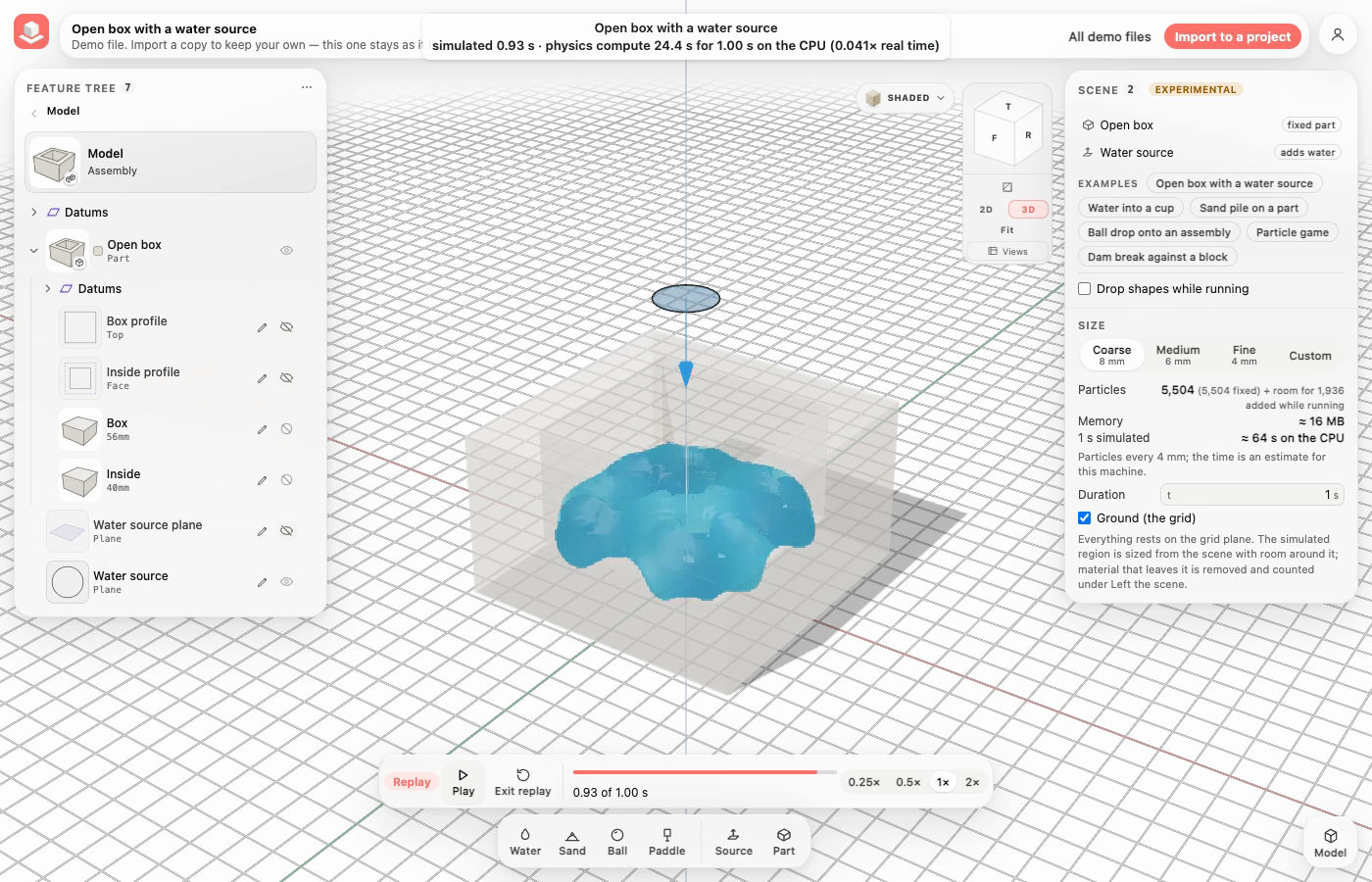
Water from a sketched circle fills a modelled box
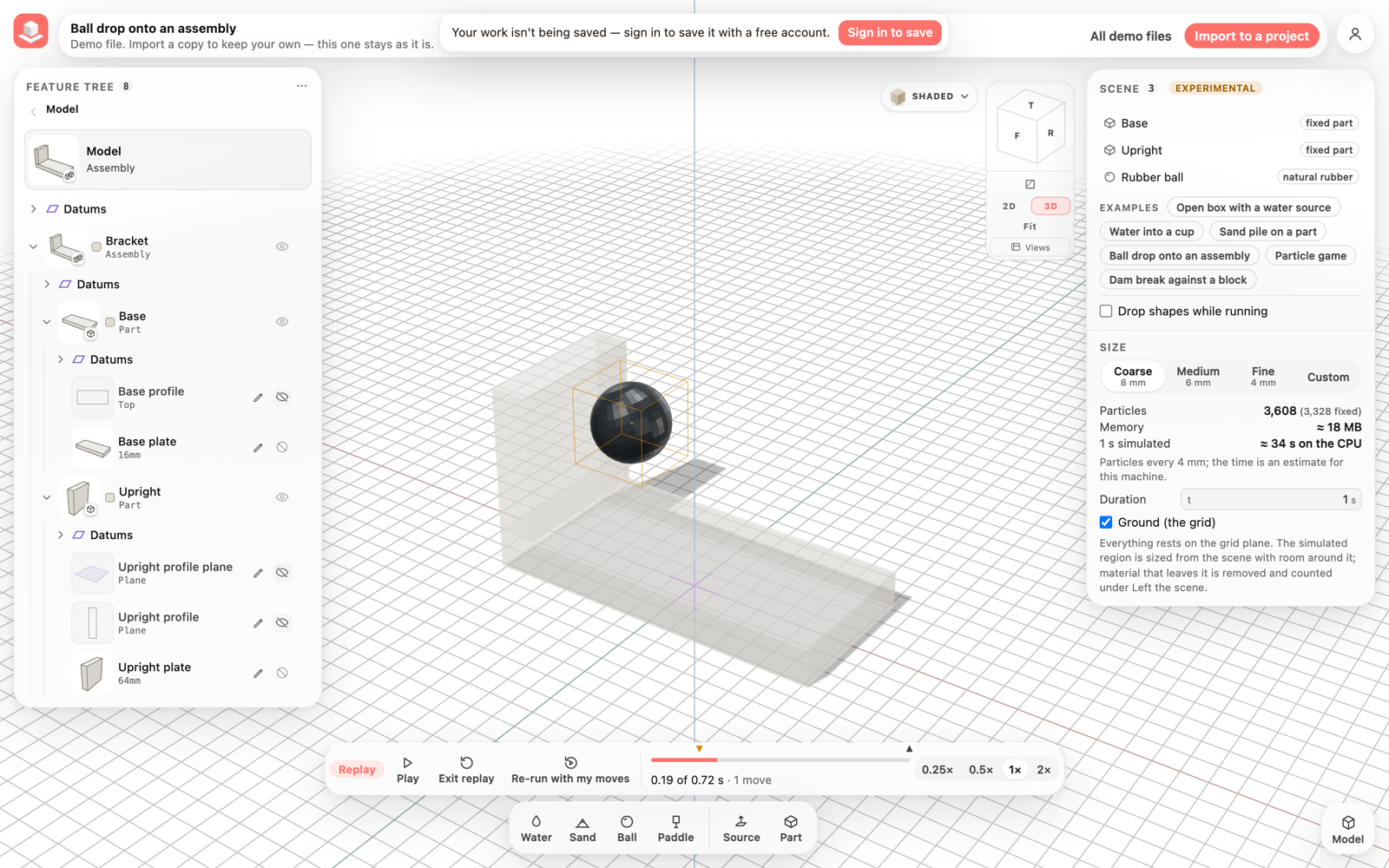
Replay with your moves
The replay at the moment the ball was picked up, with the marks on the timeline.
The Feature tree and the scene, side by side
The Open box with a water source demo in Simulate: the model's tree on the left, the Scene panel on the right.
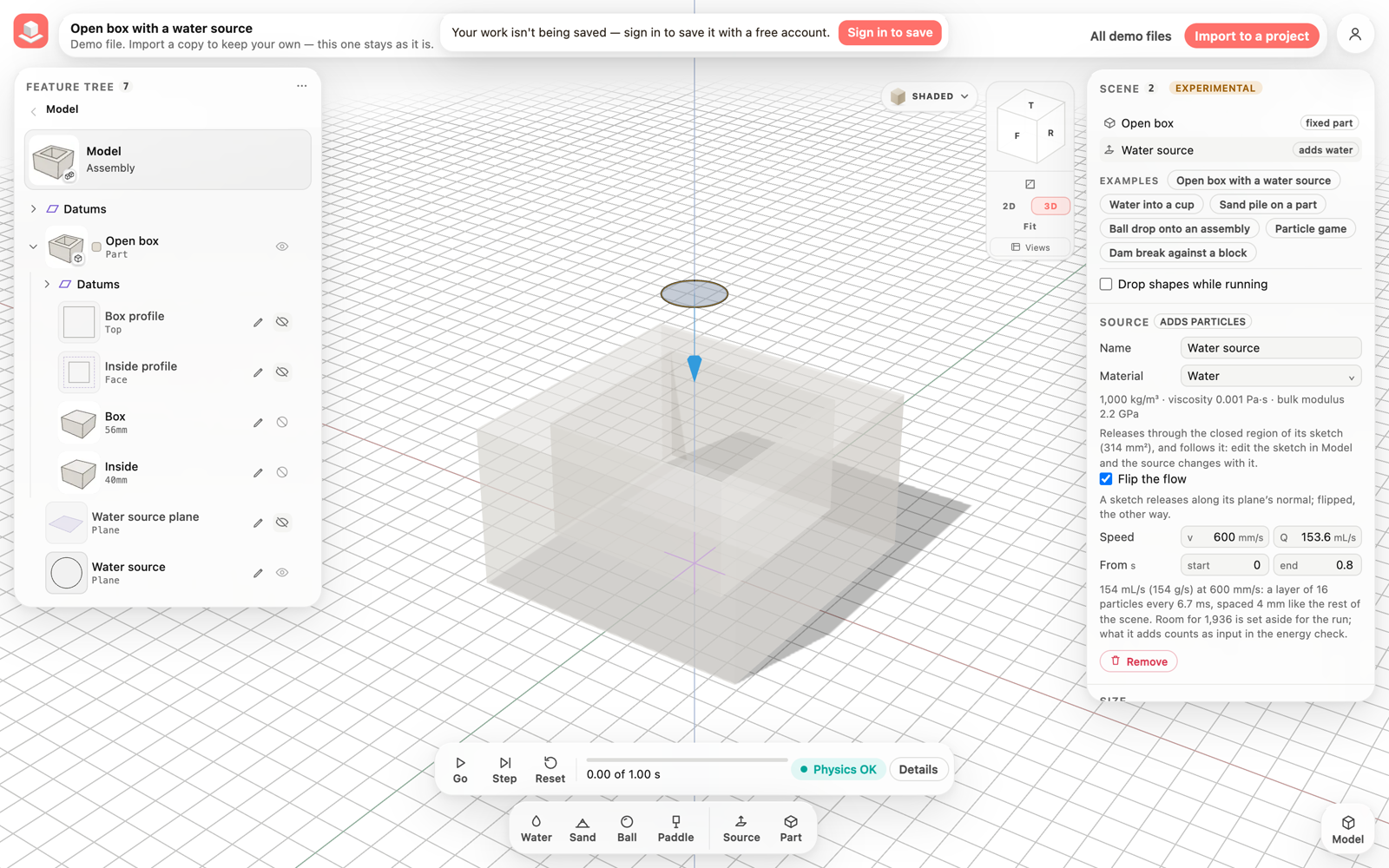
Your Feature tree and the scene, side by side
Simulate works like the study browser of other CAD apps: the Feature tree stays on the left and stays usable, and the Scene panel with the scene's items, the selected item's properties and the settings is on the right. Everything solid in a scene comes from your model: model a cup, a box or a wall as a part and add it.
The simulated region is automatic. It is sized from what is in the scene, with room around it, and anything that leaves it is removed and counted under Left the scene. The grid is the ground unless you turn Ground (the grid) off.
- Model a part, for example a rectangle extruded into a block, and press Simulate.
- In the Feature tree, right-click the part and choose Add to simulation (fixed). It becomes a fixed body exactly where the model has it.
- Press Water in the bottom bar, then Go. The water lands on your part.
- To change the part, right-click its sketch in the tree and choose Edit: you are back in Model with the same view, and the scene follows your edit when you return.
Take hold of anything while it runs
A running simulation is no longer something you only watch. Press a solid body and it is yours: it follows the pointer as a held body of particles, pushes water and sand out of its way, and when you let go it keeps the speed you gave it, so you can throw it.
The pointer drags in the plane facing you. Hold Shift to move along your line of sight instead. Water and sand themselves cannot be held, because they are not one body once they flow.
- Open Demo files, then Ball drop onto an assembly under Simulation. The first time in a session, press I understand, open Simulation.
- Press Go.
- While the ball is moving, press it and drag it across the view. It is outlined in amber while you hold it.
- Let go while still moving the pointer: the ball flies on and bounces off the bracket.
- To carry a wall or a container too: before pressing Go, select it and tick Movable while running in its properties.
Replay the run with your moves
Every run is recorded as it plays: the particle positions of the frames you saw and every move you made. Replay plays that recording; nothing is simulated again, so it is instant at any speed.
Re-run with my moves is the opposite: it simulates the scene again, applying your recorded moves at exactly the same engine steps, and checks the result against your run.
- Press Pause, or wait for the run to finish.
- Press Replay. The run plays back from the start; the marks on the timeline show where you picked something up and let it go.
- Click a mark to jump to that moment, or drag along the timeline. Choose 0.25×, 0.5×, 1× or 2× for the speed.
- Press Re-run with my moves to simulate it again with your moves. Open Details: Re-run with your moves says Same as your run when it matches step for step.
- Press Exit replay to return to the run where you left it.
Sources from your own sketches and faces
A source is any closed area that material flows out of. Draw it in Model like anything else, as a closed sketch on a plane or on a face of a part, or use a flat face of the part itself, and make it a source in Simulate. It flows along the area's normal, which you can flip.
Speed and flow rate are both shown and either can be typed in. What a source adds counts as input in the energy check.
- In Model, sketch a closed shape, for example a circle on a plane above a container or a rectangle on the top face of a block.
- Press Simulate, then Source in the bottom bar, and choose your sketch under Make source from the model.
- In the source's properties, tick Flip the flow if it should go the other way, and set the speed or the flow in mL/s.
- Or press Source, then A face of a part…, and click a flat face in the view.
- Press Go. The material enters through the whole area while the run is between the source's start and end times.
Limits
Grabbing needs the CPU engine. If a run is on the GPU when you take a body, or material leaves the region on the GPU, the scene switches to the CPU and starts again from the beginning, and the run bar says so. The Simulation demos run on the CPU engine for these reasons and because it is faster for scenes of their size today.
On phones a body moves in the plane facing you; the two-finger depth drag is not available yet. Recordings keep at most 512 MB of frames per run: a long run keeps every second, fourth or eighth frame, as Details shows.
Simulation is still experimental and slow: the demos take from about 10 seconds to about 3 minutes to compute at the Coarse size on a fast desktop. Walls that hold water should be at least two cells thick (16 mm at Coarse); thinner ones let water sink in.
Everything in this release
Added
- In Simulate the Feature tree stays on the left, as in Model, and the Scene panel sits on the right with the view cube beside it. Right-click a part in the tree for Add to simulation (fixed or free), or a closed sketch for Make source. Editing a sketch or feature from the tree takes you back to Model with the same view.
- Container and Wall are gone from the Add bar: cups, boxes and walls are parts you model, then add with Part or from the tree. Scenes saved with them still open, as fixed bodies of the same shape and material, with a note saying so.
- There is no boundary box to place. The simulated region is sized automatically around everything in the scene, including where the sources' jets land, with room around it. Material that leaves it is removed and counted under Left the scene. The region's size is shown in Details.
- Ground (the grid) in the scene's settings is on by default, so things land on the grid. Turn it off and material falls until it leaves the region. There are no side walls unless you model them.
- While the scene runs, press any solid body in the view and drag it. It moves as a held body of particles and pushes what it meets; let go and it flies on with its speed. Shift moves it toward or away from you; on a touch screen, touch and hold it first. Fixed parts can be carried too when you tick Movable while running.
- The body you hold is outlined in amber. Details shows Your moves: how many times you picked something up and the work your hand did, which the energy check counts as input.
- After Pause, or when the run ends, Replay plays the run back from its recording: play, pause, scrub, and 0.25×, 0.5×, 1× or 2×. Marks on the timeline show where you picked something up, let it go, dropped a shape or switched a source; a ring shows where your hand was.
- Re-run with my moves simulates the scene again from the start with your recorded moves at exactly the same steps. Details then confirms the new run is the same as yours, step for step.
- Source replaces Feeder in the Add bar: a Circle or Rectangle you place and aim, a closed region of one of your sketches (on a plane or on a face), or a flat face of a part. Water, sand or any flowing material enters through the whole area, at a speed or a flow in mL/s, between a start and an end time. A sketch that is not closed is refused with the reason, and a source follows its sketch or face when you change it in Model.
- The Demo files have a Simulation section: Open box with a water source, Water into a cup, Sand pile on a part, Ball drop onto an assembly, Particle game and Dam break against a block. Each opens its model and goes straight into Simulate with its scene; the Examples in the Scene panel open them too.
- On phones the top card has a Tree | Scene switch; it opens on Scene.
