Smoother sketch editing
Sketch editing stays responsive as downstream features rebuild, and points keep their attachments to arcs.
See and change a point’s attachments
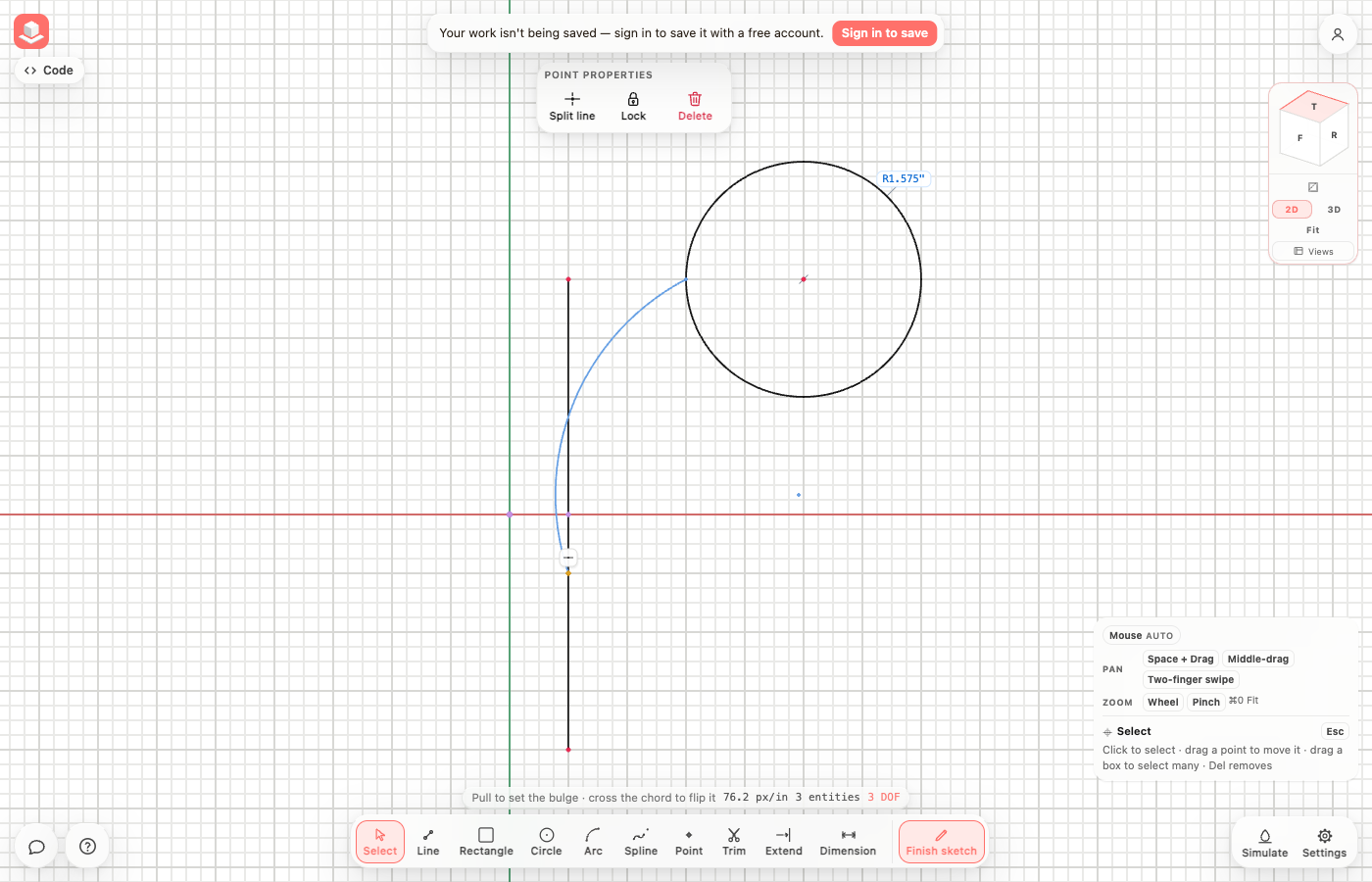
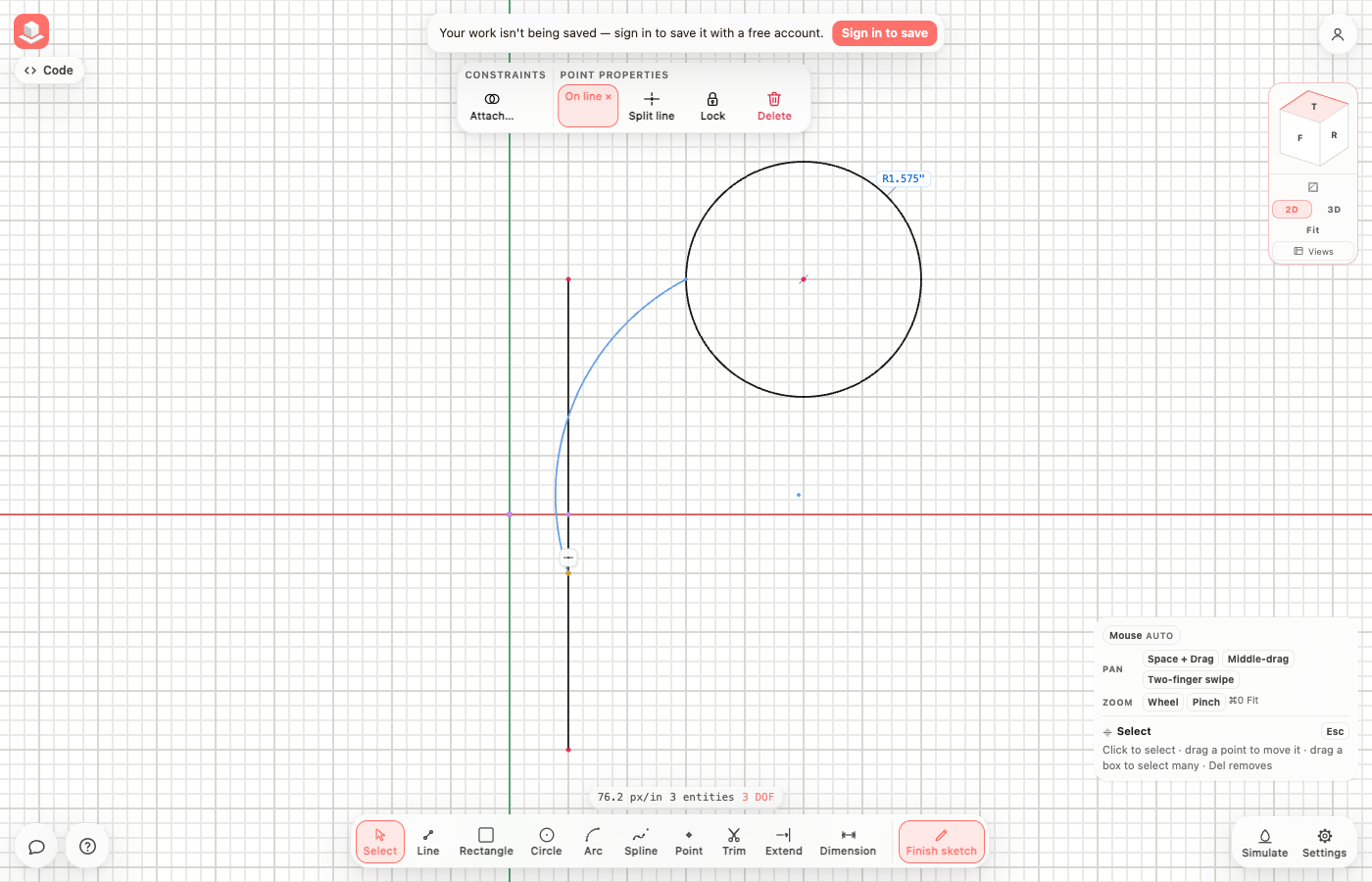 BeforeAfter
Connect a sketch point
Open the sketch for editing, then use Select to pick the point. Its existing attachments appear under Point Properties.
- Choose Attach, then pick another point, line, arc or circle.
- To release an existing attachment, press its × button in Point Properties. Use Undo to restore it.
Everything in this release
Fixed
- A selected sketch point now offers Attach: pick another point to join them, or a line, arc or circle to keep the point on it. This works with a mouse or a finger, without holding a modifier key.
- Point Properties shows existing line, curve and coincident attachments, with a remove button for each. Removing an attachment keeps the geometry.
- Points snapped or attached to an existing arc now stay attached through later edits and saving. Previously that attachment could disappear.
- Fixed long pauses when dragging sketch points or drawing arcs in a part with demanding downstream features. The sketch stays live, and the finished part updates after a brief pause.
Other improvements
- Fixed long pauses when dragging sketch points or drawing arcs in parts with demanding downstream features.
- Points snapped or attached to an existing arc now stay attached through later edits and saving.
- Attach a selected sketch point to another point, line, arc or circle without modifier keys, and see or remove its existing attachments in Point Properties.
