Edit dimensions where they are
Edit values in place, confirm deletion beside the dimension, and watch the sketch resize smoothly after saving.
Edit and save in place
The pencil becomes a checkmark and the trash becomes an X. Save a new value to smoothly resize the sketch, with its dimension lines, label and controls moving together.
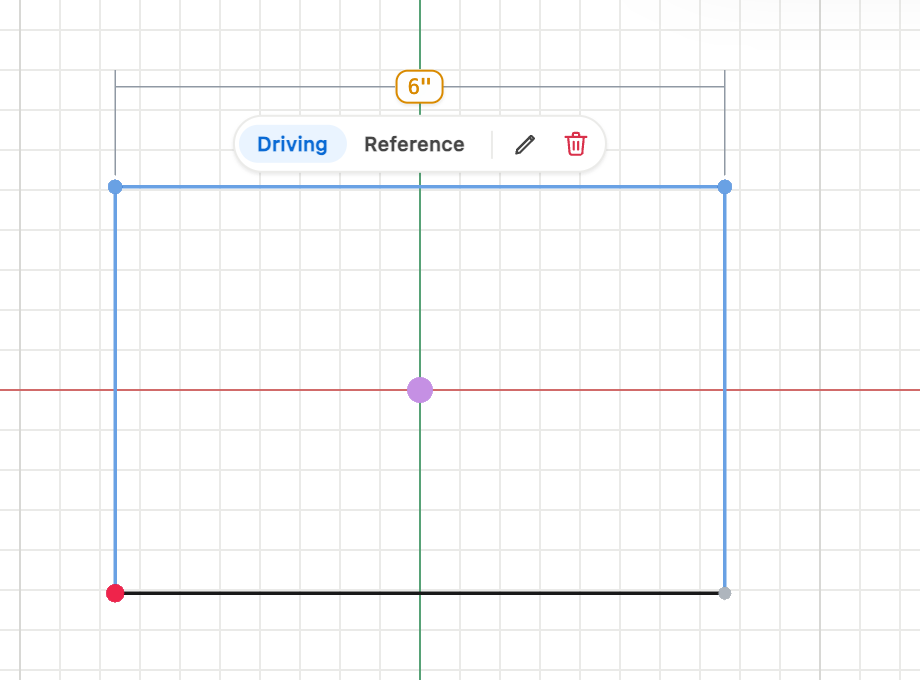
Edit the text where it is
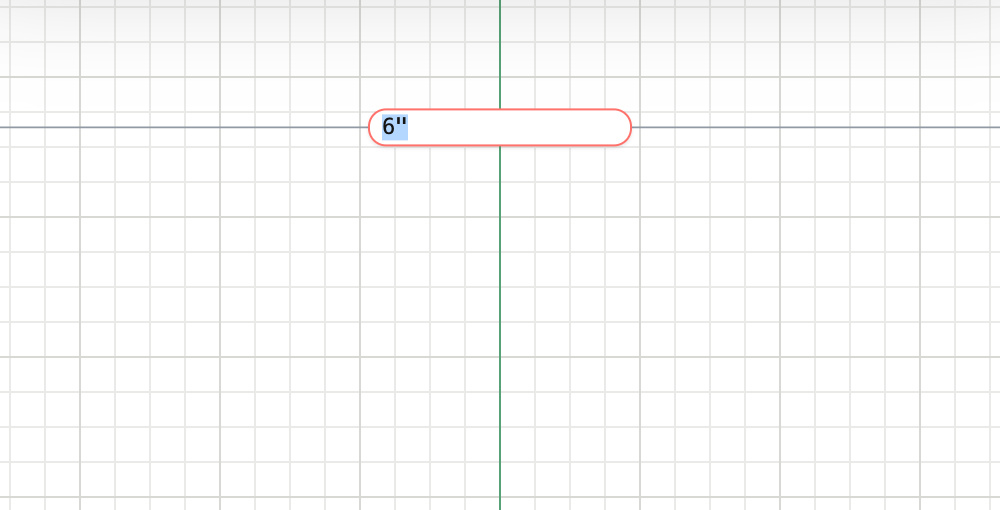
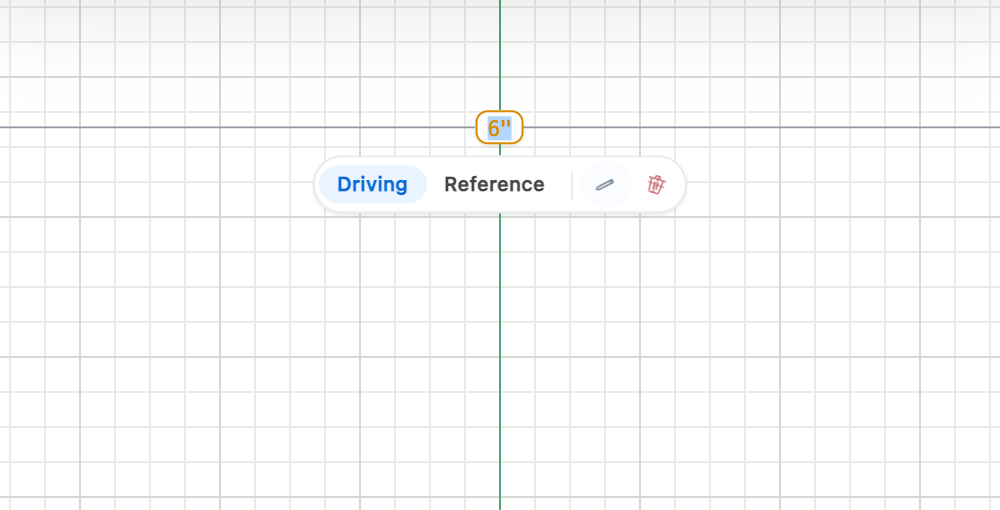 BeforeAfter
Confirm, then delete
The first trash click opens Confirm delete. Click again to remove the dimension with a brief fade; the sketch geometry stays in place.
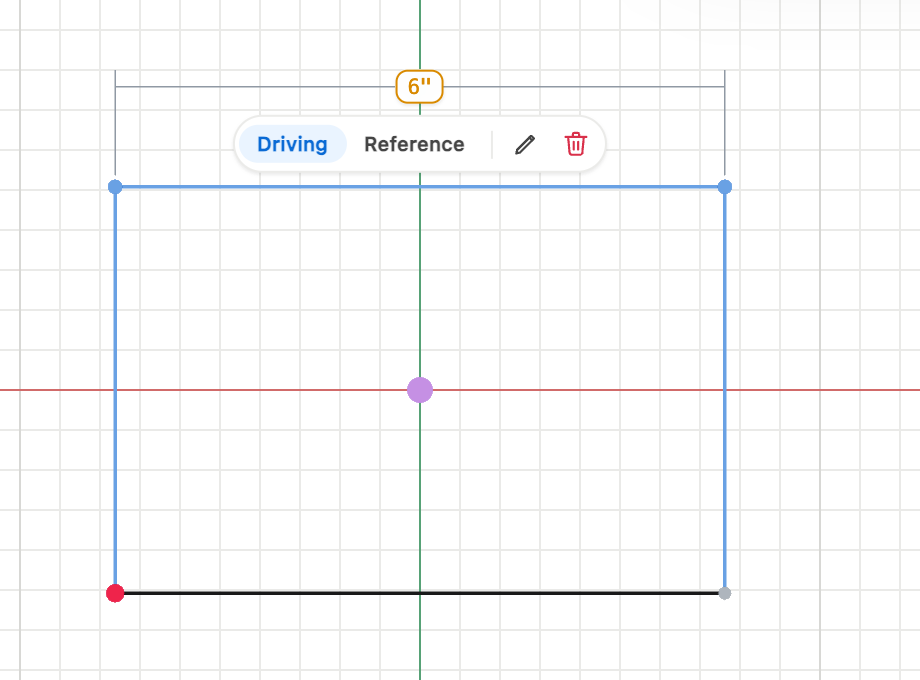
Edit a sketch dimension
Open a sketch and select a dimension. Reference values stay measured; choose Driving before editing. Driving area values require straight boundaries joined at their endpoints; curved or crossing boundaries remain reference measurements.
- Double-click a driving value or choose its pencil icon.
- Type a length, an angle in degrees, or an area. Choose the checkmark or press Enter to apply it; choose the X or press Escape to cancel.
- The sketch and labels move together after saving. Your reduced-motion preference skips the animation.
Remove a dimension
Deleting a dimension leaves its sketch geometry in place. Undo restores the dimension.
- Select the dimension and choose its trash icon.
- Choose Confirm delete to remove it. Clicking elsewhere or pressing Escape cancels the confirmation.
Everything in this release
Improved
- Selected sketch dimensions now show edit and delete icons, with an animated confirmation that requires a second click to delete.
- Double-clicking a driving dimension now edits its text inside the same label, keeping its size and position instead of opening a wider field.
- Editing a sketch dimension now shows animated checkmark and cancel buttons to apply or discard the value.
- Confirmed dimension deletion now briefly fades the label and controls away; reduced-motion settings skip the animation.
- Saving a driving dimension now smoothly resizes the sketch and moves its labels and controls together, with reduced-motion support.
- Large sketches with many dimensions resize more smoothly, including drawings with several area measurements.
- Angle labels stay at their shared vertex when their edges become parallel or form a straight angle.
