Fast engine in Simulate
Simulate gets a second engine. Fast runs on your GPU and is many times quicker, and it is now the default for water, sand, sources, paddles and picking up parts. Accurate stays as the reference engine, and its solids now bend much closer to theory.
Fast in Simulate
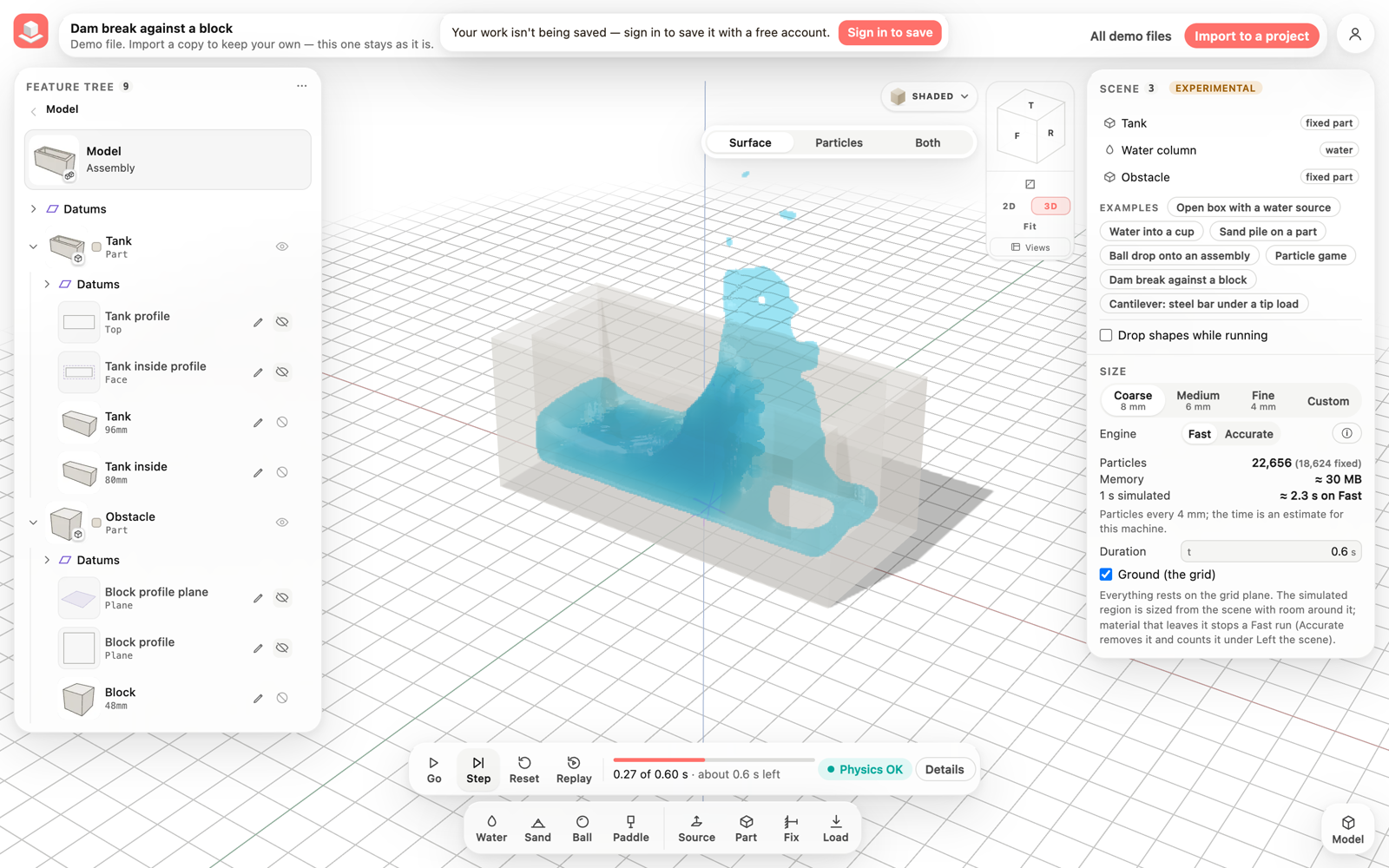
The Dam break demo on Fast, paused part-way: the water has hit the block.
Results with the new estimate
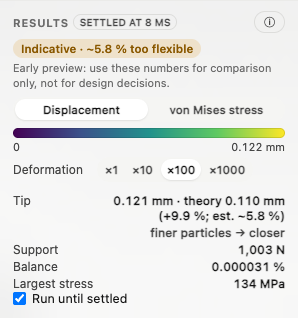
The Results panel after the run has settled: the accuracy chip, the early-preview note, the displacement legend and the tip's displacement beside beam theory.
Choose Fast or Accurate
Fast and Accurate start from the same particles and the same real materials. Fast uses your GPU and finishes the same motion many times sooner, which is what you want while you try ideas. Accurate is the reference engine: use it to check a result, and for parts with supports and loads, where stiff metals would need thousands of tiny steps on Fast.
Fast is a little less exact than Accurate in places, and the ⓘ next to the switch says where, with the differences we measured: for example, a rubber ball comes to rest about one particle cell higher above a steel plate and bounces a little lower, and water in a filled box keeps creeping slowly instead of coming fully to rest. Use the numbers for comparison only, not for design decisions.
- Open Demo files, then Dam break against a block under Simulation.
- In the Scene panel, under Size, Engine shows Fast selected. On a phone, open Settings beside Model to see it.
- Press Go. Open Details in the run bar: Speed gives the real-time factor and how long a 1 s event takes to compute, and Engine says Fast · GPU.
- Choose Accurate next to Engine and press Go to run the same scene on the reference engine.
- Press ⓘ next to the switch to read what each engine does, how they differ and their measured speeds.
When a scene runs on Accurate
Supports and loads on a part need Accurate: stiff metals would take thousands of tiny steps every millisecond on Fast. Such scenes run on Accurate and the run bar says why in one line, so the engine never changes without telling you. Your Fast choice is kept for the scene.
Fast needs a browser with WebGPU; elsewhere every scene runs on Accurate. Fast cannot remove material that leaves the simulated region yet: the run then stops and offers Switch to Accurate, which starts the scene again on the reference engine.
- Open Demo files, then Cantilever: steel bar under a tip load under Simulation.
- The run bar says Running on Accurate: supports and loads stay on Accurate, with how many Fast sub-steps the steel bar would need, and the same line appears under Engine.
- Press Go: the bar bends on Accurate as before.
What changed
Simulate computes a part as particles on a grid. The particles at the part's surface used to carry only part of the stress the material carries inside, so a thin part behaved as if it were thinner than it is and bent too far. They now carry the same stress as the particles inside, so bending and stretching come out close to the real material even when only a few grid cells fit across the part.
What is left at coarse sizes is mostly at the supports: a fixed face holds the part a little behind its surface, so the part turns slightly at the support. Finer sizes reduce it.
- Open Demo files, then Cantilever: steel bar under a tip load under Simulation.
- Press Go and wait until the run has settled.
- In Results, compare Tip with theory and read the accuracy chip under the heading.
Everything in this release
Added
- A Fast | Accurate switch sits under Size in the Scene panel (in Settings on a phone). Fast is selected by default, and your choice is kept with the scene.
- Fast runs on the GPU in browsers with WebGPU: water is solved incompressible every millisecond and sand, rubber and wood take small steps inside it, with the same real material properties. Sources, paddles, dropping shapes and picking up parts while it runs all work on Fast. Every Simulation demo except the cantilever now starts on Fast; the open box with a water source and the particle game currently stop after about a second when a splash leaves the simulated region (Switch to Accurate runs them through).
- Accurate is the reference engine: slower, used for checks and for parts with supports and loads. It runs on the CPU or the GPU, chosen under Details › Accurate runs on.
- When a scene needs something Fast cannot do yet (supports and loads on a part), it runs on Accurate and the run bar says why, for example "Running on Accurate: supports and loads stay on Accurate: Bar (structural steel S355) would take 3,395 Fast sub-steps per 1 ms frame". In a browser without WebGPU every scene runs on Accurate, and that is said too.
- The engine never changes on its own: if a Fast run stops (for example when material leaves the simulated region), the run bar says why and offers a Switch to Accurate button, which starts the scene again from 0 s on Accurate.
- The ⓘ next to the switch explains both engines, what Fast does less exactly (with the differences we measured) and how fast each demo runs on each engine.
- Details shows which engine is running, Fast's 1 ms frames and the sub-steps its solids take, the measured speed with the time a 1 s event takes to compute (now to a tenth of a second below 10 s), and why a run stopped, in plain words. In Replay, Details says which engine made the recording, and Re-run with my moves works on Fast too, compared frame by frame.
- The size estimate gives the time for 1 s simulated on the engine that will run the scene.
Fixed
- Solid parts are much stiffer at the surface, as they should be: a steel bar 4 grid cells thick now bends about 17 % more than beam theory (was 68 %), and about 6 % at 8 cells (was 25 %). A bar pulled along its length stretches within 2 % of the material's real stretch at 4 cells (was 21 %).
- The Cantilever demo now reads 0.121 mm at the tip against the beam-theory answer of 0.110 mm (was 0.141 mm).
- The accuracy chip in Results is recomputed from the new checks: Rough about 16 % at 4 cells, Indicative about 6 % at 8 cells, Closer about 2 % from 16 cells, and the ⓘ card explains what is left (mostly where a fixed face holds the part).
- Water and sand follow the same rule at their surfaces: water results are unchanged in our checks, and a collapsing sand column now spreads slightly further, still within the range our checks against real sand columns allow.
Other improvements
- Simulate has a Fast | Accurate switch under Size in the Scene panel (in Settings on a phone). Fast runs on your GPU and is many times quicker: water is solved incompressible every millisecond and sand, rubber and wood take small steps inside it, with the same real materials. Accurate is the reference engine, for checks and for parts with supports and loads. Fast is the default, and your choice is kept with the scene.
- Sources, paddles, dropping shapes and picking up parts while it runs all work on Fast; every Simulation demo except the cantilever now runs on Fast.
- When a scene needs Accurate (supports and loads on a part), or the browser has no WebGPU, it runs on Accurate and the run bar says why in one line. The engine never changes on its own: a stopped Fast run offers a Switch to Accurate button.
- The ⓘ next to the switch explains both engines, what Fast does less exactly with the differences we measured, and the measured speed of the demos on each.
- Details shows the engine (in Replay, the engine that made the recording; Re-run with my moves works on Fast too), Fast's frames and sub-steps, why a run stopped in plain words, and the time a 1 s event takes to compute to a tenth of a second below 10 s (it said "1 s" for 1.3 s). The size estimate gives the time on the engine that will run the scene.
