Measure distances and angles in 3D
Pick points, edges or faces to inspect distances, face gaps and angles. A compact panel keeps the model visible on desktop and phones.
Distances and angles in a compact panel
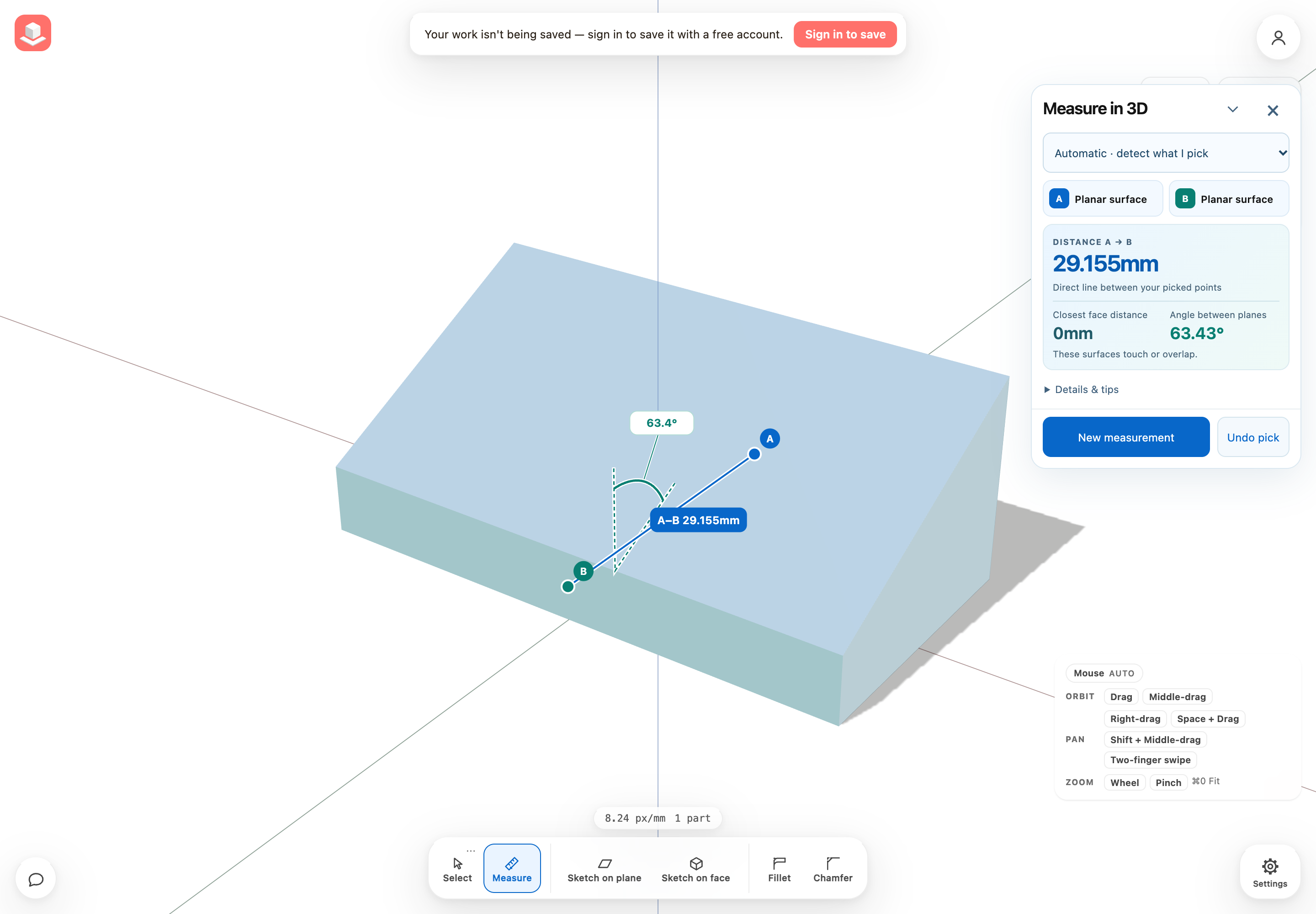
Separate picked-point distance from face distance
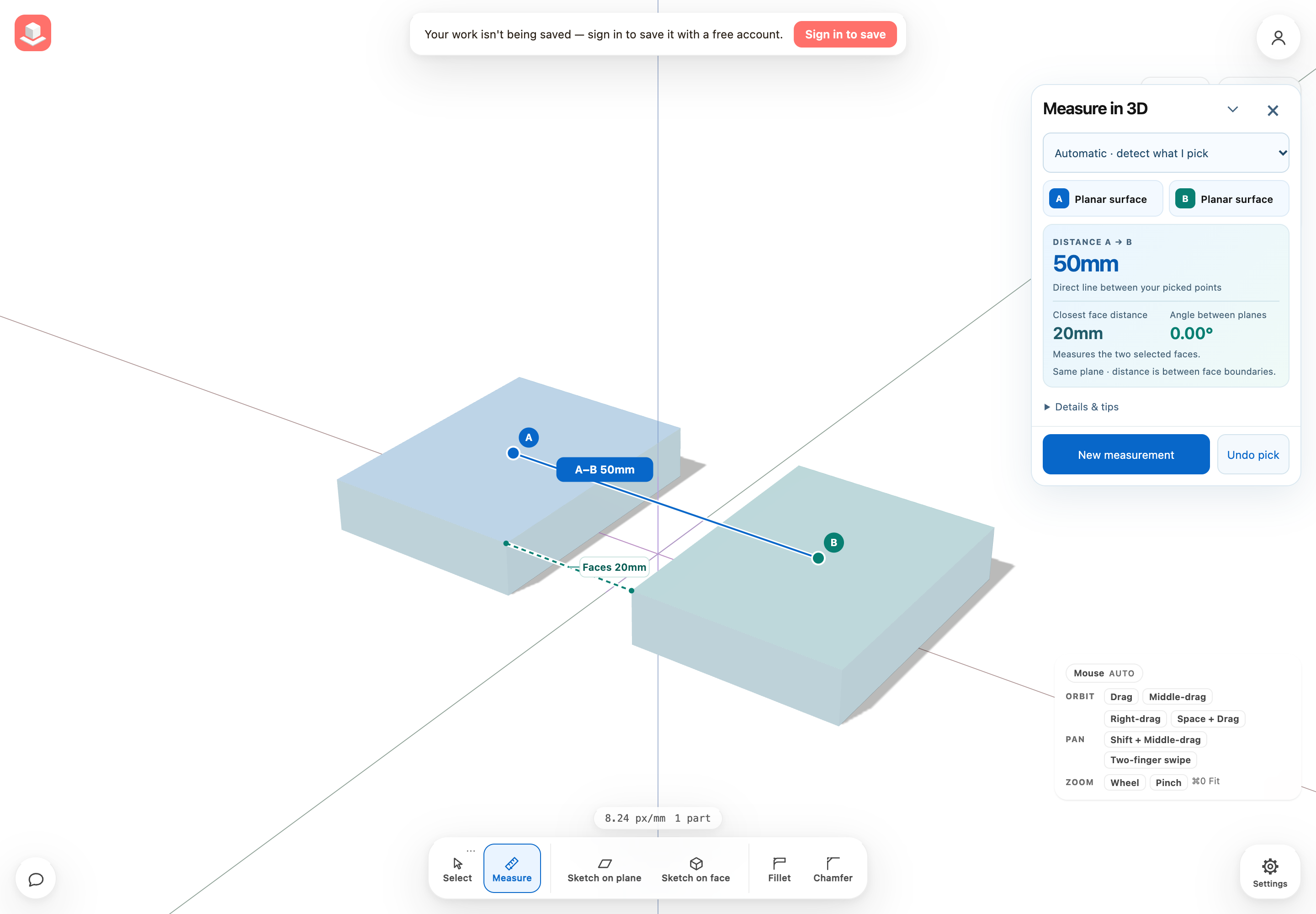
Take a measurement in 3D
Distance A → B and its solid blue connector measure the two marked click positions. Closest face distance or Shortest geometry gap measures finite geometry, including boundaries and holes. A nonzero distance that differs from A–B has a dashed teal guide. Touching faces can have a zero distance even when the picked points are far apart. Repeated picks on the same face or edge get a specific explanation.
Parallel planar faces report their perpendicular separation, while coplanar faces say Same plane. Disjoint faces on one plane can have a nonzero distance between their boundaries. Face distance measures the selected faces; select opposing faces to measure the empty space between solid bodies.
Details & tips expands axis differences and guidance. Use the down chevron to minimize the panel while picking on the model; the small result row updates as you tap. The up chevron restores the panel without losing your pair. New measurement and Undo pick remain reachable below scrolling content. Phone layouts follow the bottom dock and respond to rotation. Very short phone landscape screens temporarily hide the normal dock during measurement; closing Measure restores it. Errors scroll into view, and model highlights stay behind the panel.
Automatic selection recognizes boundary vertices, midpoints, edges and face interiors. Choose a specific mode to override; changing modes clears the old pair. Curved geometry uses mesh facets and finite segments rather than restored analytic surfaces.
Angles use the smaller line or plane angle from 0 to 90 degrees. Nonparallel planar faces have a 3D angle guide on their extended planes. Parallel faces and remote intersections keep the number without an arc; line angles have numerical readings. Non-planar faces have no plane angle.
Groups beyond 4,000 faces fall back to point picks in automatic mode. Calculations beyond 50,000 triangle pairs return an error; choose smaller faces or Point to point. Repeated picks on the same cached face skip the scan because their gap is known to be zero. Close a section view before measuring original surfaces. Opening a section or editing geometry clears measurement. Results are temporary inspection, not saved annotations or constraints.
- Finish any open sketch and switch to the 3D view of a part.
- Choose Measure in the bottom toolbar. Start with Automatic · detect what I pick in the mode menu, or choose a specific task.
- Hover to preview the detected kind. Click A and B, then read Distance A → B, any geometry gap and any angle in the panel.
- Use Undo pick or New measurement to inspect another pair. Close measure tool or press Escape to return to selection.
Everything in this release
Added
- Measure distances between points, edge segments, and surfaces in the 3D workspace, including angles between straight lines and planar surfaces, without changing your model.
- Point measurements snap to vertices and edge midpoints, edge anchors stay at the click, and the panel displays picked-point X/Y/Z differences in the project’s units.
- Undo pick, New measurement and Escape let you inspect another pair; editing the geometry clears the result instead of leaving stale measurements.
- Let the 3D Measure tool detect vertices, edge segments and surfaces automatically, with hover previews and manual overrides.
- Read the distance between picked points separately from the shortest geometry gap, with explanations for touching faces and repeated picks.
- See the angle between planar surfaces drawn in 3D, with guides that follow the model as you orbit.
- See whether measured parallel faces share a plane or have a perpendicular separation, with face distance clearly distinguished from the space between solid bodies.
- Face-distance labels avoid the picked-point connector and its badge, keeping both readings legible while you orbit.
- Use a compact Measure panel with side-by-side distance and angle readings, and expand Details & tips for axis differences and guidance.
- Minimize Measure to a small row while picking on phones; its touch controls stay reachable as you scroll or rotate the screen.
- Measure panels stay clear of the bottom dock. Very short phone landscape views temporarily hide the dock during measurement and restore it when you close Measure.
- Measurement highlights stay behind floating controls, and errors scroll into view on small screens.
