Saved views and clearer sections
Save useful views, keep working inside a confirmed section, spot where parts overlap, and watch models load.
Your useful angles, one click away
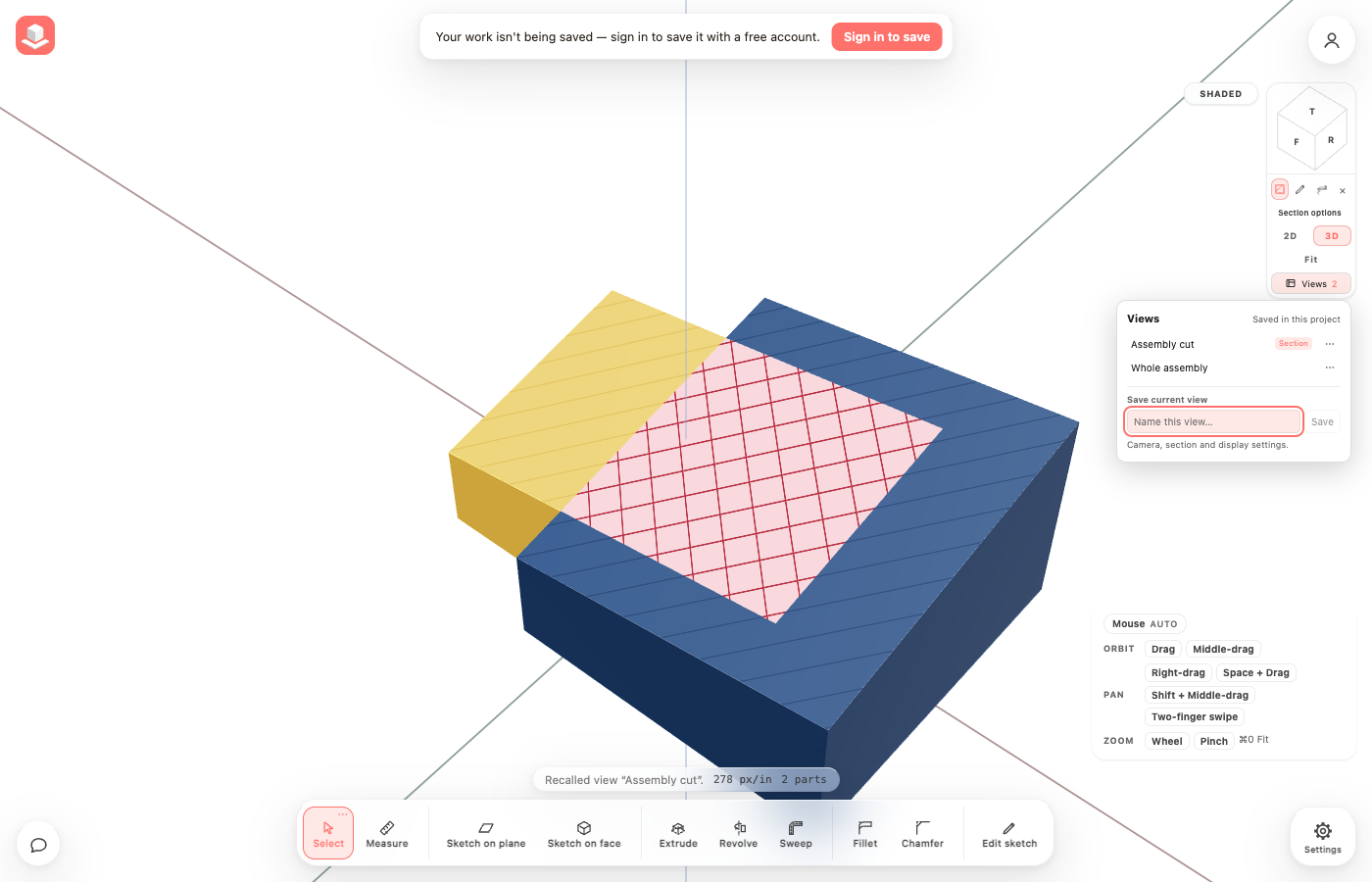
Views sits below Fit, with named camera and section presets saved in the project.
Confirm the cut and keep working
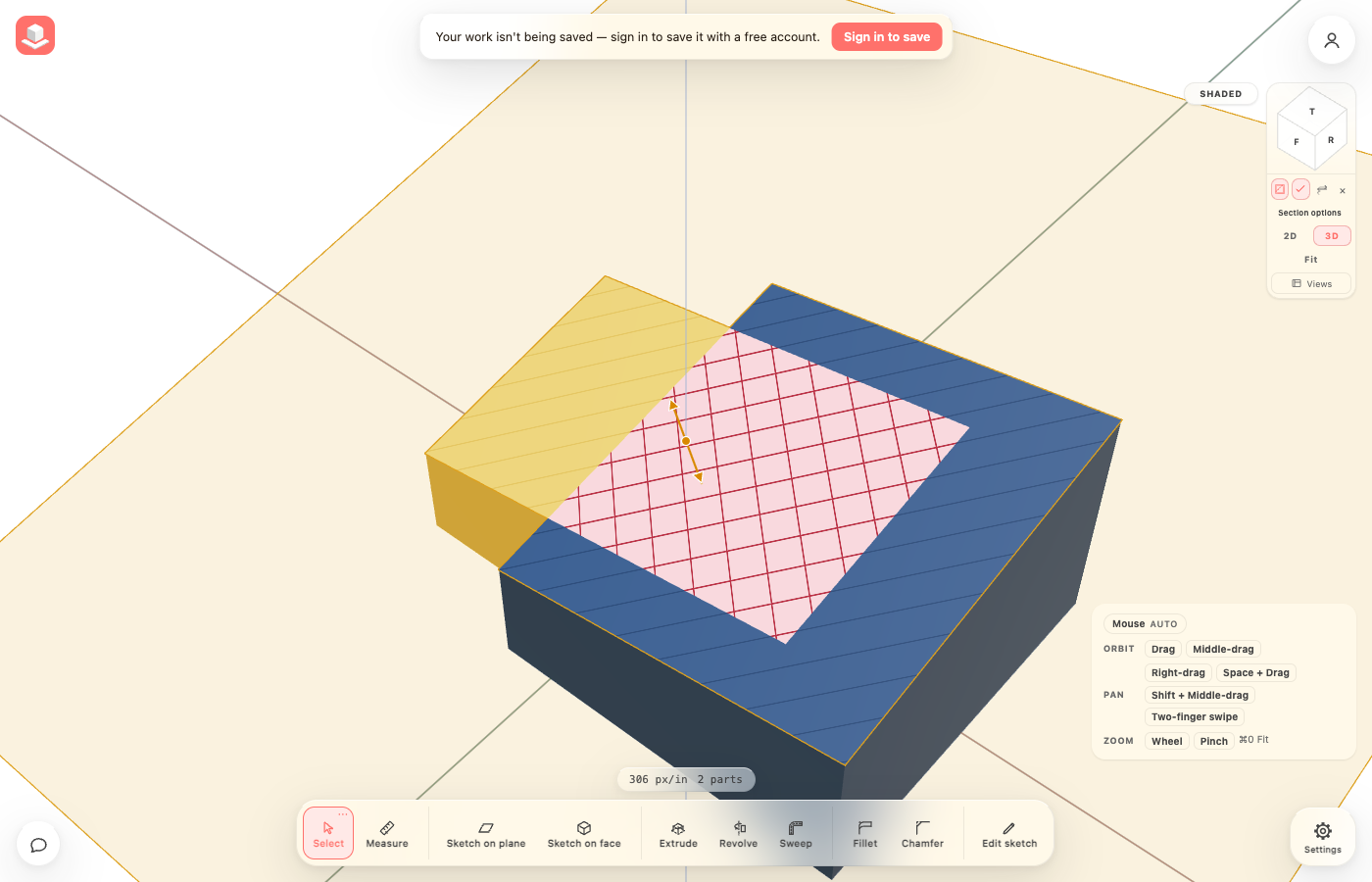
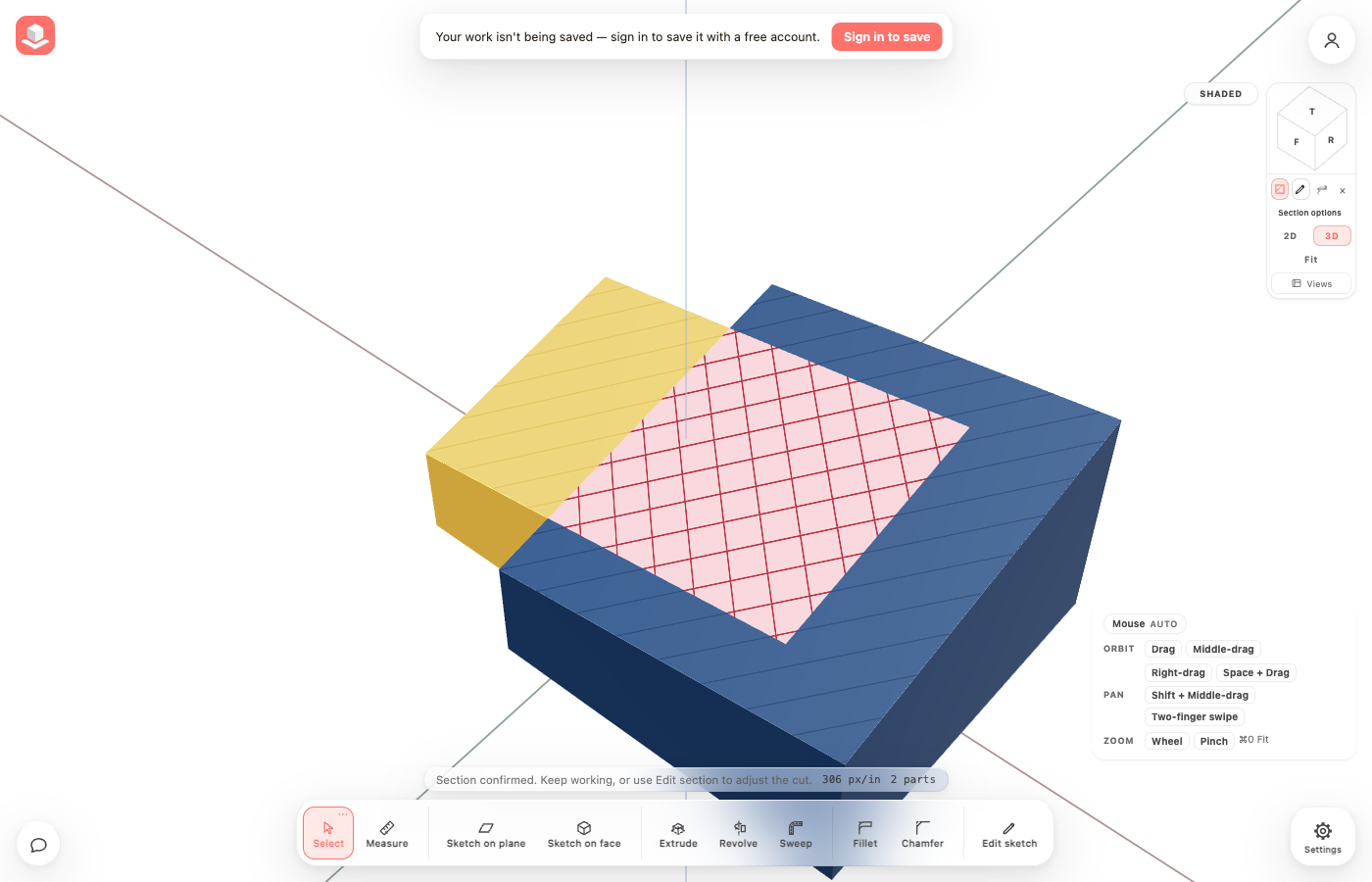
The same section before and after confirming it. The editing sheet and arrow disappear while cut material and overlap warnings remain visible.
 BeforeAfter
See the shared material
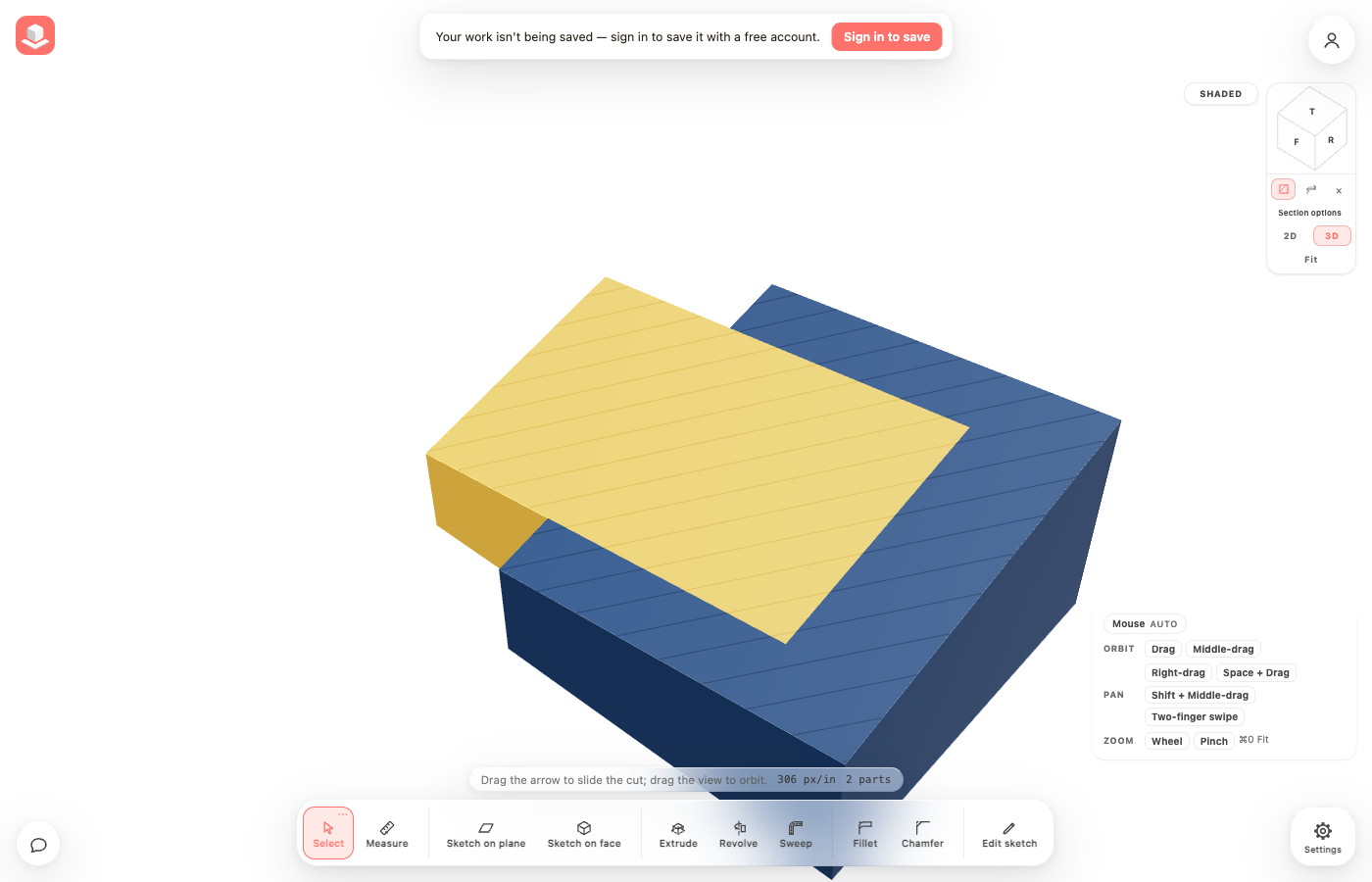
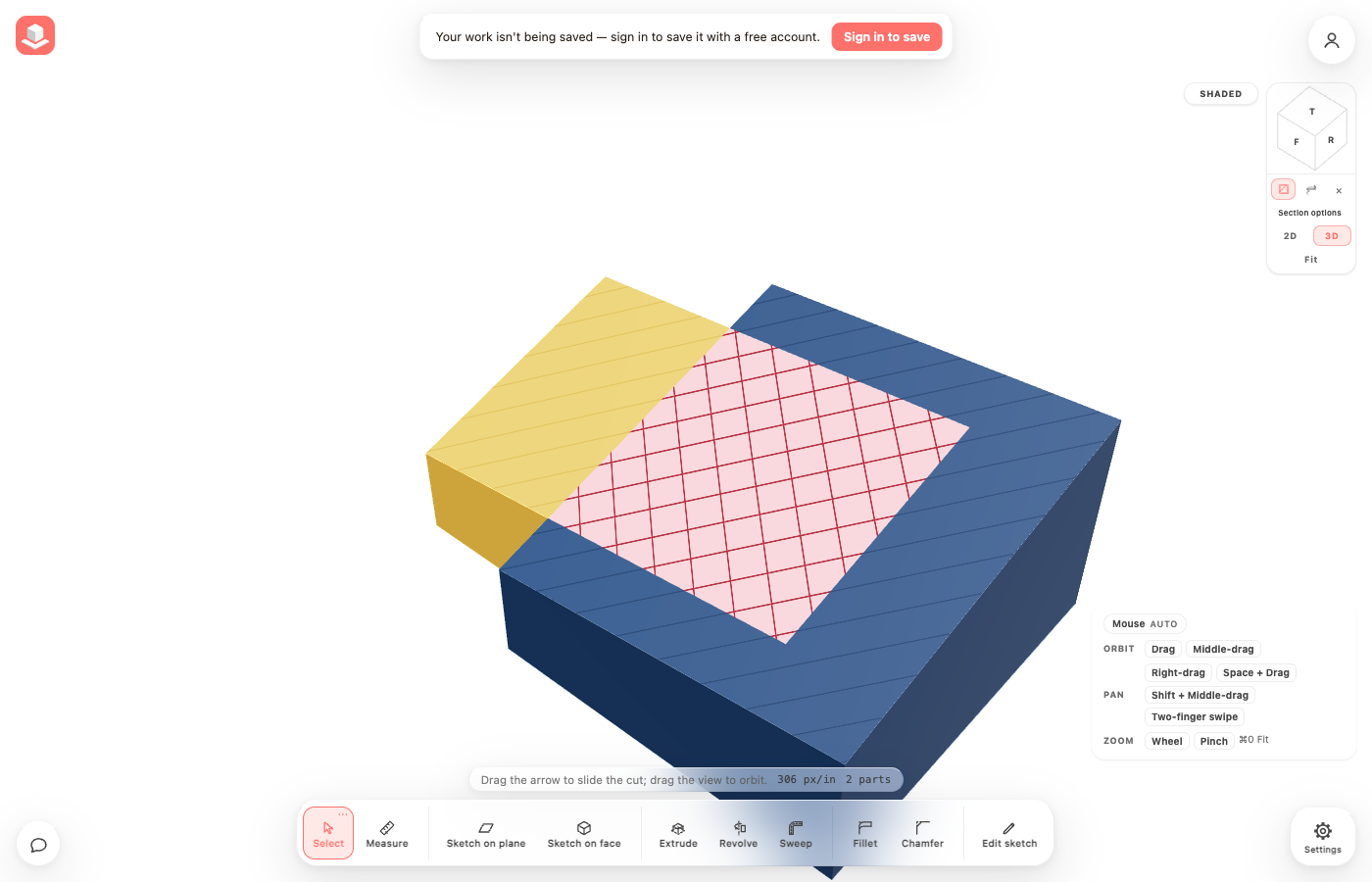
The same amber and blue parts are cut by one oblique plane, with overlap warnings off and on.
 BeforeAfter
Open a model and watch it build
Saved native projects, native file imports and demo files use the normal editor with a compact Opening model card. Drag to orbit or zoom while geometry appears. Editing becomes available after the finished document is installed, and the card disappears automatically.
The percentage counts processed features, rather than elapsed time. A complex feature can hold the same label for a while. Browsers that cannot show loading progress open the completed model at once.
- Open a saved project, import a native JSON file, or choose a model in All demo files.
- Watch the current feature and part beneath the progress bar. Use Cancel loading to stop and retain the previous document.
- When Model ready appears, continue exploring or editing the finished model.
Keep working with a section
Confirming a cut hides the plane and handles while keeping cut faces visible. Saving a view is optional. You can orbit, select retained surfaces, create sketches and edit the model while the section stays active.
The filled cut surface is for viewing; create sketches on retained model surfaces or a datum plane. Close the section before using Measure.
- In 3D, use Cross-section to place a cut and drag its arrow to the position you want.
- Click the checkmark to Confirm section. Use Edit section to bring back the plane and handles.
- Press Escape while adjusting to restore the previous confirmed cut. Use the off button to remove the section.
Save a useful view
Saved 3D views remember the camera, an optional section and display settings. They show the current model when recalled, and travel with the project when it is saved or exported.
Finish or cancel an open feature-edit or armed model-pick session before saving or recalling a view. Shared read-only projects allow recall; open your own copy to edit views. Files with saved views need a version of CAD Modeler that supports them.
- Open Views below Fit in the top-right cube, enter a name under Save current view and press Save.
- Click a saved name to recall it. A Section badge means the preset includes a cut; a view without one shows the full model.
- Open a row’s options to Rename, Update to current view, or Delete and Confirm delete. Undo restores changes to saved views.
Everything in this release
Added
- See a compact progress bar and the current feature and part while native models open, with geometry appearing as the model loads and camera navigation available throughout.
- Cancel a model opening or switch files without an older load replacing your next choice; unfinished geometry stays out of your saved document and undo history.
- The Views panel uses smaller text and compact inputs to match the surrounding viewport controls.
- Save named 3D views from Views below Fit, recall their camera, optional section and display settings, and rename, update or delete them with undo support. Saved views travel with the project.
- Confirm a section with the checkmark to hide its plane and handles while continuing to work in the cut. Edit section restores the controls, and Escape cancels adjustments without removing a confirmed cut.
- Picking in a section follows the visible model: hidden surfaces cannot steal selection, and interior surfaces remain selectable through openings.
Fixed
- The turbine release guide keeps its editable demo link and removes the developer pull-request link.
- Creating a sketch on a model surface now keeps you editing in 3D and centres the view on the selected face, including side faces and placed parts.
- Repairing a sketch onto another face keeps it open for editing in 3D and focuses its new surface.
- Section views mark shared cut material with a red tint and crosshatching that stays stable while panning, orbiting, zooming or flipping the section.
- Show overlaps in Section options toggles the warning independently of ordinary hatching and remembers your preference in this browser.
- With overlap warnings hidden, shared section areas keep the earlier part in model order visible instead of alternating colors or stripes while moving the camera.
- A part enclosed by another part is treated as cut material, so it no longer creates a false hole in the surrounding part.
